Appearance
Terrain Auto Paint
Terrain Auto Paint paints the terrain's surfaces for you instead of by hand with a brush. It does not change the shape of the ground; it only decides which material (grass, dirt, rock, snow…) covers each point.
Arming the tool shows two panels in the Inspector, one under the other. They work in different ways and write different kinds of paint:
| Terrain Auto Paint section (the Surface Paint palette) | Auto Paint section and the sections under it (the rules) | |
|---|---|---|
| What you set | A list of Surface Materials with relative weights (for example Grass 50, Dry Grass 20, Dirt 10). | An ordered list of rules: "this layer where the ground is this high / this steep / this curved". |
| Where the material goes | In organic patches, randomly placed but fixed to the world. The weights decide the share of the terrain each material gets. | Where the shape of the ground matches each rule (height, slope, curvature), optionally broken up by noise. |
| What it writes | Generated paint, kept apart from the terrain's own paint and composed over it. Regenerating or clearing it is always safe. | The terrain's base paint (its layer weights), the same paint the layers and the old brush wrote. |
| How you run it | Auto Paint Terrain / Regenerate Terrain Paint. | Preview, then Apply (or Enter). |
| Undo | Every palette edit is one undo step; each run is one undo step. | Editing rules is not an undo step; each Apply is one undo step. |
Both are optional: you can use only the palette, only the rules, or both. Before you use both, read Two kinds of paint: an applied palette covers the result of the rules.
Screenshots
No screenshot of the Terrain Auto Paint panels could be taken for this page. This machine has no Electron build of the editor (no electron binary and no dist/electron-app), and installing one was not allowed. A capture script is ready in manual/capture/terrain-auto-paint.ts, but it has not been run yet. The image below is an earlier real capture (from capture/map.ts) of the Terrain tool group. Everything else on this page comes from the editor's source code, and the panels are described in words.
Where to find it
- Click the Map workspace button in the top bar.
- On the toolbar on the left of the 3D view, find the Terrain group. Click its small arrow ▸, or right-click the group button, to open the list of Terrain tools (see Tool groups).
- Click Terrain Auto Paint (icon ✧). It sits right after Material Paint (❖).
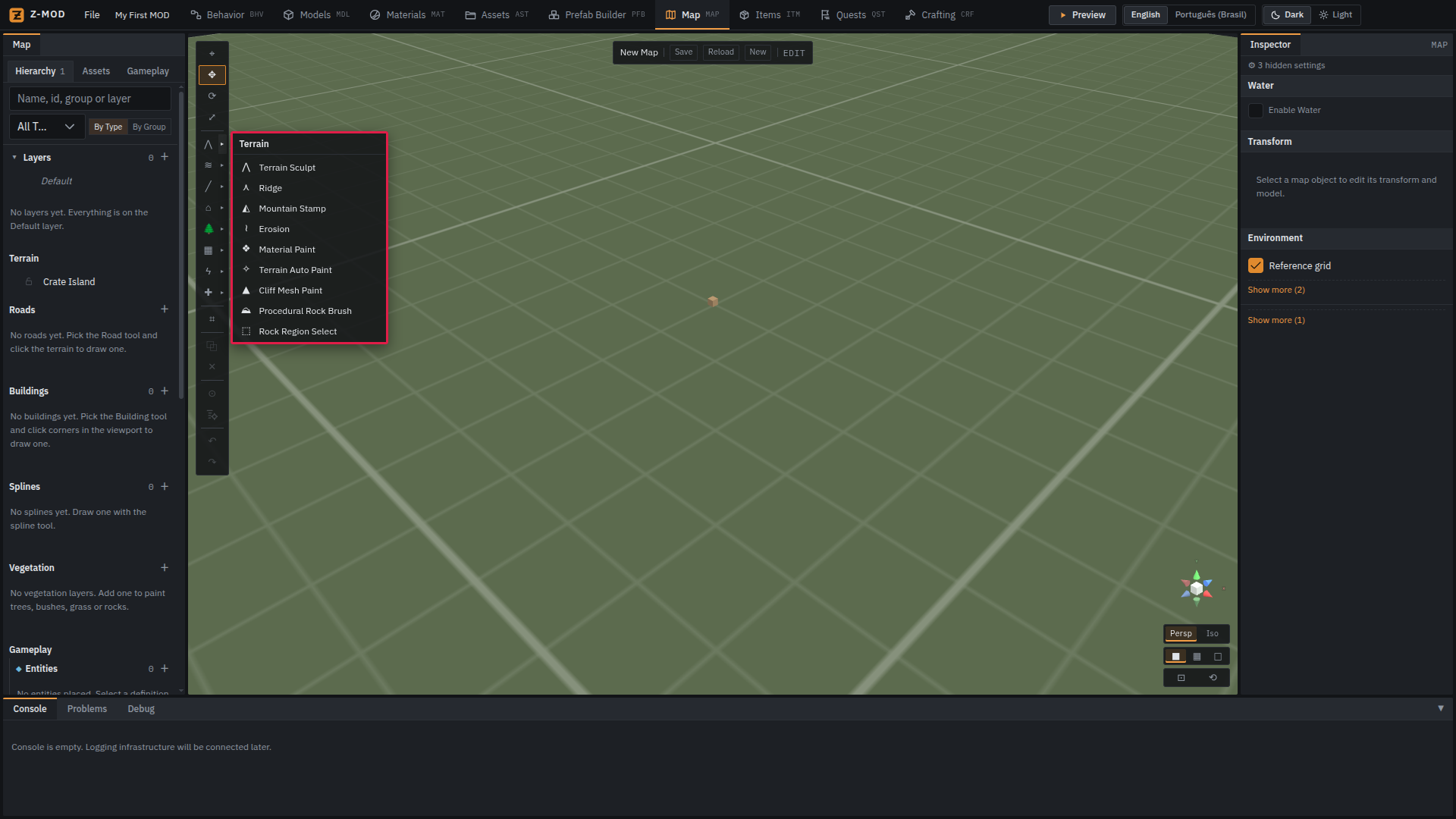
Real capture from an earlier run of the editor (capture/map.ts). The top bar of the current editor may look different, and this capture may predate the Terrain Auto Paint entry; it shows where the Terrain list opens.
After that, the Terrain group button shows the ✧ icon, and clicking the group button itself arms Terrain Auto Paint again (a group button arms the last tool you used from it).
Terrain Auto Paint has no keyboard shortcut to arm it.
The panels appear as soon as the tool is armed
Unlike Material Paint, you do not need to select the terrain. The Inspector (right panel) shows the two Terrain Auto Paint panels as soon as the tool is armed.
One exception: while one of these is selected, its own Inspector is shown instead: an entity definition, entity instance, spawn, spawn pool, wave controller, gameplay volume or marker, loot or loot profile, vehicle spawn or vehicle spawn profile, building, spline, exterior boundary or exterior prop, assembly instance, or an editor layer / group (Organization). The tool stays armed; clear that selection to get the Auto Paint panels back.
How to stop using the tool
- Press Esc twice quickly (within 400 ms) to go to the Select tool. A single Esc already stops a running evaluation, takes a preview back and forgets the region (see Keyboard and mouse).
- Or arm any other tool from the toolbar.
Leaving the tool takes back an unapplied preview, stops a running evaluation and forgets the region. Your rules stay as you left them (until you change maps or close the editor: see The working copy).
Before you start
| Requirement | What happens without it |
|---|---|
| The map has a terrain. | The toolbar entry is disabled with "Create a terrain first." See Create the terrain. |
| The terrain is not locked. | The toolbar entry is disabled with "The terrain is locked. Unlock it to sculpt or paint." If the terrain is locked while the tool is armed, the rules panel shrinks to its warning (see the next row) and Preview / Apply are gone. |
| For the rules: the terrain has at least one layer. | The Auto Paint section shows only "Auto Paint needs a terrain with at least one texture layer. Add layers in the terrain inspector first." (the same text is shown when the terrain is locked). The Rules, Analysis and Apply To sections are not shown. The palette still works: running it adds the layers it needs. |
| For the palette: at least one textured Surface Material (one with a base colour / albedo map) in the project. | Colour-only or missing materials cannot paint: they are flagged in the list and left out. |
| You are in the Map workspace and not in Preview. | The rules tool is inactive: Preview, Apply and Enter do nothing. |
The rules (and the palette) paint every chunk, including chunks that are OFF in the Chunks tab; only the chunks that are loaded in the view show the preview.
Two kinds of paint
What you see on the terrain is built in layers, bottom to top. The editor composes them in one place, so the order is always the same:
what you see =  BASE paint            the terrain's layer weights: Auto Paint RULES write here,
                                      and so do river, coast and wetland surfaces
             →  GLOBAL generated paint    the Surface Paint PALETTE (this tool's first section)
             →  WORLD ZONE paint          each zone's Terrain Paint (inherits the palette)
             →  zone transitions
             →  MANUAL paint              Material Paint strokes
             →  roads, dams, rail beds, substations
What this means in practice:
- Once the palette is applied, it covers the base paint completely, except the layers you protect (palette's Advanced group) or that are preserved as feature surfaces. So the result of the rules is hidden wherever the global palette is applied: Preview and Apply still work, but you see no change. To see the rules, click Clear Global Paint (or do not run the palette). In the rules' Preview, the palette is also drawn on top.
- Manual paint (Material Paint strokes) is always on top of both. Neither Auto Paint Terrain nor Apply removes it. See Clear Manual Paint.
- World Zones with their own Terrain Paint paint over the global palette inside the zone (see Terrain Paint in World Zones).
A good way to combine them: use the rules for ground that follows the relief (rock on cliffs, snow on peaks), protect those layers in the palette's Advanced group, then let the palette vary the rest with organic patches. See Typical tasks.
The Inspector at a glance
From top to bottom:
- Terrain Auto Paint: the Surface Paint palette: status, Materials, Patch Scale, Variation, Transition Softness, Seed, Auto Paint Terrain / Regenerate Terrain Paint, Clear Global Paint, Clear Manual Paint, and the collapsible Advanced group.
- Auto Paint: the start of the rules: hint, Preset + Load, Base Layer.
- Rules: + Add Rule and the rule cards. See Rules section.
- Analysis (Medium): Curvature Radius (Advanced), the terrain's elevation range, Protected Layers. See Analysis.
- Apply To: Entire Terrain / Region, Edge Blend, progress, Preview, Apply, Stop / Cancel, Reset, status line. See Apply To.
| State | Terrain Auto Paint (palette) | Auto Paint | Rules, Analysis, Apply To |
|---|---|---|---|
| Terrain has layers, unlocked | ✓ | ✓ (full) | ✓ |
| Terrain has no layer | ✓ | warning only | – |
| Terrain locked while armed | ✓ (runs that would add layers are refused) | warning only | – |
Hidden settings ("Show more")
Some fields appear only at a higher Inspector Complexity (File › Preferences… › General › Inspector Complexity; see The Inspector). A new install starts at Normal. A hidden field keeps its value and keeps working; it is only not drawn. A section that hides something ends with Show more (N); a section hidden completely (Analysis, at Normal) is reached through the Show more at the end of the Inspector.
| Field | Section | Shown from |
|---|---|---|
| Transition Softness | Terrain Auto Paint | Medium |
| Seed: Auto (and the Seed field) | Terrain Auto Paint | Medium |
| The Advanced group (Patch size, Preserve feature surfaces, protected layers, Paint with the World Generator) | Terrain Auto Paint | Medium (and it starts collapsed: click Advanced to open it) |
| Height condition | Rules (open card) | Medium |
| Slope condition | Rules (open card) | Medium |
| Curvature picker, and its Min / Max / Blend | Rules (open card) | Medium (the two Material… buttons on the same line are shown at every level) |
| Noise condition | Rules (open card) | Medium |
| The whole Analysis section (elevation range, Protected Layers) | Analysis | Medium |
| Curvature Radius (m) | Analysis | Advanced |
| Edge Blend (m) (only with Region) | Apply To | Medium |
So at Normal, an open rule card offers only Name, Layer, Strength and the Material… buttons: the conditions are behind Show more. The built-in presets set the conditions for you; that is how the editor expects Normal users to work. When the Analysis section has protected layers, it reports a modified hidden setting. These levels are taken from the source; the exact Show more counts have not been seen in a real capture.
Quick start
Paint from the shape of the ground (rules)
- Make sure the terrain has layers whose names say what they are (for example Grass, Dirt, Rock, Snow): presets find layers by name. See Add your first layer.
- Arm Terrain › Terrain Auto Paint.
- In Auto Paint, pick a Preset (for example Temperate Mountain) and click Load. The Rules list fills with five rules, each already on one of your layers.
- In Apply To, keep Entire Terrain and click Preview. A progress bar runs; then the terrain shows the result. Nothing is committed yet.
- Change a rule if needed (for example raise Strength or pick another Layer): the preview updates a moment later.
- Click Apply (or press Enter with no text field focused). It is one undo step.
If nothing seems to change, see Two kinds of paint.
Cover the terrain with a palette of materials
- Arm Terrain › Terrain Auto Paint.
- In Terrain Auto Paint, click + Add Material and choose a textured Surface Material (for example a grass). It joins with weight 50.
- Add two or three more (a dry grass, a dirt…). Each joins with the smallest weight already in the list. Type the weights you want: 50 / 20 / 10 means about 63 % / 25 % / 13 % of the terrain (the % column shows it).
- Click Auto Paint Terrain. The editor adds a terrain layer for each material if needed, then shows "Generating Terrain Paint... Chunk n / N" and, when done, "Terrain painted (N loaded chunks updated)."
- Change a weight or Patch Scale: the status turns to "The palette changed since the terrain was painted - Regenerate." Click Regenerate Terrain Paint.
The Surface Paint palette (Terrain Auto Paint section)
This section edits the map's global terrain palette: the Surface Materials blended over the whole terrain in organic patches. Its hint reads: "Surface Materials blended over the whole terrain in organic patches. Weights are relative: 50/20/10 is the same palette as 5/2/1. World Zones inherit this palette; manual paint always stays on top."
How edits behave:
- Every edit of the palette is one undo step and changes the map document only. The terrain does not repaint until you click Auto Paint Terrain / Regenerate Terrain Paint. Until then the status says the palette changed.
- The palette is saved with the map. World Zones inherit it and can override it per zone (see Terrain Paint in World Zones).
Status line
Under the hint, one line tells you where the palette stands:
| Text | When |
|---|---|
| "Not painted yet - Auto Paint Terrain paints the palette." | Nothing applied yet, and at least one material would paint. |
| "Painted with the current palette." | The applied paint matches the current palette. |
| "The palette changed since the terrain was painted - Regenerate." (shown as a warning) | Something that changes the result was edited after the last run: a material's share (weight, enabled, added, removed), Patch Scale, Patch size, Variation, Transition Softness or Seed. Protected layers and Preserve feature surfaces do not make it Dirty: they act directly (see Advanced). |
| "Add at least one Surface Material with a weight above 0." | No material would paint (empty list, all unticked or all at weight 0), and nothing is applied. |
Materials
The Materials list shows one row per material in the palette. With no row, it says "No materials yet. The terrain keeps its base paint."
| Control (in the row, left to right) | What it does |
|---|---|
| Check box (Paint with this material) | Ticked = the material paints. Unticked = it stays in the list but gets no share (the % column shows -). One undo step. |
| Name | The Surface Material's name (hover to see its id). A row whose material cannot paint is dimmed and shows a badge: missing (the material is no longer in the project) or not a terrain material (it is not a textured material with a base colour map, for example a colour-only material). Such a material is left out when the palette runs ("Painted - these materials could not paint the terrain and were left out: …"). |
| Weight (number, min 0, step 1) | The material's relative weight. Committed when the field changes (on blur or Enter). 0 = it does not paint. A negative or non-numeric value is refused with "A weight must be 0 or more."; an empty field counts as 0. Weights are stored up to 1 000 000. |
| Share (%) | Read-only: the material's weight divided by the total weight of the materials that paint (tooltip: "The share of the terrain this material gets (its weight over the total)."). - when the material does not paint (unticked or weight 0). A flagged (missing / not terrain) material still shows a share here; when the palette runs, the shares are recomputed over the materials that could paint. |
| ↑ / ↓ (Move up / Move down (display order only)) | Moves the row. Display order only: the paint never depends on the order. One undo step. Disabled on the first / last row. |
| ✕ (Remove) | Removes the material from the palette at once (no confirmation; one undo step). Terrain layers already made for it stay on the terrain. |
Preview limit. If more than 6 materials paint, the panel warns: "More than 6 materials paint here: the editor preview blends the 6 strongest per chunk (the export keeps them all)."
Add Material
+ Add Material opens the Material Picker (purpose: "Choose a Surface Material for the terrain palette"), opened on the environment category, with colour-only choices not allowed. Click a material to add it:
- A new material joins with the smallest weight already in the palette (at least 1), or 50 if the palette was empty, so adding never takes the terrain over. Raise it afterwards.
- A material already in the palette is not added twice: "That material is already in the palette."
- Adding is one undo step and does not repaint (the status turns Dirty, or Not painted yet).
Generation settings
| Name | Control | Level | Default | Range / units | Purpose and effects |
|---|---|---|---|---|---|
| Patch Scale | Drop-down | Normal | Medium | Large (160 m), Medium (80 m), Small (36 m) | The size of the medium patches, in world metres. Overridden by Patch size (m) in Advanced when that has a value. |
| Variation | Drop-down | Normal | Normal | Low, Normal, High | How much the patches vary in size and shape: each material's patches mix a large, a medium and a fine noise, and Variation sets how much the large and fine scales count (internal amounts 0.25 / 0.5 / 0.85). |
| Transition Softness | Slider, % (shown in the label) | Medium | 65 % | 0–100 %, steps of 5 | How soft the borders between materials are. Low = crisp borders where one material wins; high = wide blends. Applied when you release the slider (one undo step). |
| Seed: Auto | Check box | Medium | Ticked (Auto) | – | Ticked = the seed is derived from the world seed (the World Generator's seed when the map has one, else one derived from the map). Tooltip: "Auto derives the seed from the world seed. Untick for an explicit seed." Unticking picks a random explicit seed and shows the Seed field. |
| Seed | Number (no visible label) | Medium | – | Whole numbers 0 – 4 294 967 295 | Only when Seed: Auto is unticked. Another seed gives another arrangement of patches; the same seed, the same arrangement. Values that are not whole numbers in range are ignored. |
How the palette places materials (from the source): each material has three world-anchored noise fields (large, medium, fine) on a shared distortion. Where the transitions are sharp, a material wins with a probability equal to its share, so Grass at 50 % covers about half the terrain, and every choice is a coherent patch, not a per-texel coin flip. The pattern is a function of world position only, so it is seamless across chunks and regions. Each material's fields are keyed by the material, so adding a material does not reshuffle the others. On a small terrain with large patches only a few patches fit, so the realized shares can differ from the targets.
Auto Paint Terrain, Regenerate, Clear Global Paint
| Button | When | What it does |
|---|---|---|
| Auto Paint Terrain | Label while the status is Not painted yet or Add at least one… | Runs the palette (see below). Disabled while a run is in progress. |
| Regenerate Terrain Paint | Same button, label while the status is Painted… or changed… Regenerate | Runs the palette again. It always repaints, even when the status says it is up to date. |
| Clear Global Paint | Enabled when a global paint is applied and nothing is running | Removes the applied global paint (one undo step): the terrain shows its base paint again. World Zone paint and manual paint stay. Message: "Global Auto Paint cleared. Zone and manual paint stay." The palette itself is kept. |
| Cancel | Next to the progress text, during a run | Stops the run: "Cancelled - nothing was changed." |
What a run does:
- For each material that paints (most painting first), it finds a terrain layer: a layer of this terrain already made of that material, else the project's layer for it (reused, or created from the material). Missing layers are added to the terrain at the end of its layer list. On a terrain with no layer, the first one added becomes the ground everywhere.
- It records the applied paint (the materials, their layers and shares, and the settings) in the map.
- It shows "Generating Terrain Paint... Chunk n / N" while it prepares the loaded chunks one by one, with Cancel.
- It commits everything (new layers and applied paint) as one undo step, then shows "Terrain painted (N loaded chunks updated)."
If the map or the terrain changes during the run (for example you undo something), nothing is recorded: "The map changed while painting - nothing was recorded. Run it again." If it needed to add layers to a locked terrain, it is refused: "Nothing was recorded (the terrain is locked or the map changed)."
Clear Manual Paint
While the terrain has manual paint (Material Paint strokes), the section shows "Manual paint is kept above the generated paint." and a Clear Manual Paint button. It removes all manual paint of the terrain, in every chunk, as one undo step, with the message "Manual paint cleared." No confirmation; a locked terrain is refused. It is the same action as in Material Paint.
Advanced group
A collapsible group titled Advanced, shown from Medium, closed until you click its title. When something inside differs from its default, the section reports a modified hidden setting.
| Name | Control | Default | Range / units | Purpose and effects |
|---|---|---|---|---|
| Patch size (m) | Number (placeholder: the current Patch Scale name) | empty | 4–1000 m, step 1 | Overrides Patch Scale with an exact medium patch size (tooltip: "The medium patch size in metres; empty uses the Patch Scale."). Empty the field to go back to Patch Scale. Values outside the range are held at the limit. Makes the status Dirty. |
| Preserve feature surfaces | Check box | On | – | Tooltip: "River, coast and wetland surfaces painted into the base are never covered by generated paint." The layers used by the river (bed, bank, transition), the coasts (underwater, shore, beach, cliff) and wetland zones (mud, wet dirt, water edge, rock) keep their base paint. The terrain's first layer is never preserved this way. |
| "Layers the generated paint never covers:" and one check box per terrain layer (labelled with the layer's name) | Check boxes | all off | – | Tick a layer to protect it: wherever the base paint has that layer, the generated paint does not cover it. Use it to keep what the rules painted (rock on cliffs, snow) visible under the palette. A layer protected by Preserve feature surfaces but not ticked shows · kept (feature) after its name. Shown only when the terrain has layers. |
| Paint with the World Generator | Check box | On | – | On = the World Generator's Terrain Paint stage also applies this palette when it generates the world. Off = it leaves the global palette alone (it still paints the zones). |
| "The preview draws up to 6 materials per chunk, chosen by how much of the chunk they cover." | Note | – | – | – |
Protected layers and Preserve feature surfaces are applied live by the composition: they take effect without Regenerate and do not make the status Dirty. Each change is still one undo step.
The rules
The rules paint the terrain's base paint from the shape of the ground. The panel's hint: "Paints the terrain's layers from the shape of the ground - height, slope, curvature and noise. Preview shows the result; Apply commits it as one undo step. Manual painting still works afterwards."
The rules never change a height. Their result is ordinary paint: the same layer weights the terrain's layers hold, so painting by hand afterwards, roads, saving, loading and exporting work as always.
Auto Paint section: Preset, Load, Base Layer
| Name | Control | Level | Default | Purpose and effects |
|---|---|---|---|---|
| Preset | Drop-down | Normal | the last preset loaded (Temperate Mountain at first) | Temperate Mountain, Alpine Mountain, Dry / Rocky, Grassland. Choosing one changes nothing yet: Load applies it. See the built-in presets. |
| Load | Button | Normal | – | Replaces the whole rule set (rules, Base Layer, Curvature Radius, and clears the Protected Layers) with the chosen preset, its materials resolved to this terrain's layers by name. No confirmation and no undo: your edited rules are gone. Disabled while an evaluation runs. If a preview is shown, it is recomputed for the new rules. |
| Base Layer | Drop-down of the terrain's layers | Normal | the preset's base (for example the grass layer); else the terrain's first layer | The layer that covers every point before the rules are laid over it: where no rule paints, you see the Base Layer. If the chosen layer is no longer on the terrain, the first layer is used. Not an undo step (see The working copy). |
A new map starts with Temperate Mountain resolved for its terrain's layers (or with no rules if the terrain has no layer yet). As long as you have not edited it, this untouched preset follows the terrain's layers: add a layer named Snow in the Terrain Inspector and the preset's snow rule moves to it. As soon as you edit anything, the rules are never rewritten behind your back. A map that already had rules applied opens with those rules.
How the rules combine
Each rule picks one layer and says where it goes with four conditions: Height, Slope, Curvature and Noise.
Each enabled condition gives a weight between 0 and 1 at every point. The rule's weight is the product of its conditions, times its Strength: every enabled condition has to hold for the layer to appear. A condition that is off counts as Any (weight 1).
The list is a stack. The Base Layer covers everything first. Then the rules are laid over it from the bottom of the list to the top, each one covering what is below it by its weight:
result = result × (1 − w) + w × (the rule's layer)So a rule higher in the list paints over the ones below it: put Snow above Rock above Dirt. The panel says: "Rules higher in the list paint over the ones below. The Base Layer lies under all of them." A rule with weight 0.3 shows 30 % of its layer over whatever lies below. The total always stays exactly 100 %.
Soft edges sit inside the range. Every range has a blend: the weight ramps smoothly over the blend width inside the range. So Grass 0–35° and Rock 30–90°, each with a 5° blend, cross-fade exactly over 30–35°.
Open ends have no ramp. A Min at the bottom of what the value can be (0 m / 0 % / 0° / −1) or a Max at its top (100 % / the terrain's Max Height / 90° / 1) has no edge there.
A rule that is off, has Strength 0 %, has no layer, or whose layer the terrain does not have (No layer on its card) paints nothing.
The same terrain, rules and seeds always give the same paint.
Rules section
The section header has + Add Rule. Under the order hint, the cards are listed top (paints over everything) to bottom. With no rule, it says "No rules: the whole terrain gets the Base Layer." At most 32 rules: + Add Rule and ⧉ are disabled at 32.
+ Add Rule adds a new rule at the top of the list (so it paints over everything) and opens its card. The new rule uses the first terrain layer that neither the Base Layer nor any rule uses yet (or the first layer, if all are used), is named after that layer, and starts as "this layer on steep ground": see New rule defaults.
Each card has a header, a summary line and (when open) a body.
| Header control | What it does |
|---|---|
| Check box (Enabled, no visible label) | Turns the rule on or off. An off rule paints nothing and its card is shown as off. |
| Title (the rule's name and its layer) | Click to open / close the card. The name is the rule's Name, or else the layer's name, or else Rule. Next to it, the layer's name, or No layer (highlighted) when the rule has no layer or the terrain does not have it. Several cards can be open at once. Which cards are open is not saved. |
| ▲ (Move up (paints over more)) | Moves the rule one place up. Disabled on the first card. |
| ▼ (Move down) | Moves the rule one place down. Disabled on the last card. |
| ⧉ (Duplicate) | Inserts a copy (same name and settings) right above the original and opens it. Use it for a variation ("Rock High"). Disabled at 32 rules. |
| ✕ (Delete) | Deletes the rule at once, with no confirmation and no undo (see The working copy). |
Summary line. Under the header, every card (open or closed) sums up its conditions: Height 10–80% (or m), Slope 30°–90°, Curvature -1…-0.3, Noise 0.3 (the noise strength as a fraction), or Any for each condition that is off; and Strength 70% when the strength is below 100 %. At Normal, this is where you see the conditions the preset set.
Rule settings
Every field changes the rule as soon as it is committed (number and text fields: on blur or Enter; sliders: as you move them). A value outside a field's range is held at the limit when it is stored. If a shown preview exists, it is recomputed 250 ms after your last change.
| Name | Control | Level | Default | Range / units | Purpose and effects |
|---|---|---|---|---|---|
| Name | Text | Normal | the layer's name (new rule) or the role name (preset: Grass, Dirt, Rock, Rock (secondary), Snow, Sand) | up to 80 characters; spaces at the ends are removed | The card's title. Empty = the title shows the layer's name. Has no effect on the paint. |
| Layer | Drop-down of the terrain's layers | Normal | see above | – | The layer this rule paints. A rule whose layer is removed from the terrain paints nothing and shows No layer. |
| Strength | Slider, % (shown in the label) | Normal | 100 % | 0–100 %, step 1 | The most of its layer the rule can lay down. 70 % = at most 70 % of the layer, even where every condition holds fully. 0 % = the rule paints nothing. |
| Material… (first button on the Curvature line) | Button | Normal | – | – | Tooltip: "Choose a Surface Material: its terrain layer is reused or created and added to the terrain". Opens the Material Picker (environment category, no colour-only materials). The chosen material's terrain layer is reused or created, added to the terrain if missing (one undo step) and set as this rule's Layer. |
| Material… (second button on the Curvature line) | Button | Normal | – | – | The same picker, but the layer becomes the Base Layer (not this rule's layer). It looks identical to the first one. |
The four conditions follow. Each has a check box that turns it on; its fields appear only when it is on. All four are Medium settings.
Height
"A range with a blend at each end, in % of the terrain's range or in world units."
| Name | Control | Default (new rule) | Range / units | Purpose and effects |
|---|---|---|---|---|
| Height | Check box | off | – | On = the rule applies only within the height range. |
| % / m | Two toggle buttons (when on) | % | – | % (relative): 0 % is the terrain's lowest point, 100 % its highest. m (absolute): world height in metres. Switching converts the values so they mean the same ground on this terrain (an open bottom stays 0; an open top becomes 100 % or the terrain's Max Height). |
| Min | Number, step 1 | 0 % | 0–100 % or 0–100 000 m | Below this height the rule paints nothing. |
| Max | Number, step 1 | 100 % | Min–100 % or Min–100 000 m | Above this height the rule paints nothing. If you type a Max below Min, it is raised to Min (an empty range paints nothing). |
| Blend In | Number, min 0, step 1 | 5 % (10 m in m) | 0 – (Max − Min) | How far above Min the layer reaches full weight (a smooth ramp from Min to Min + Blend In). No ramp when Min is at the bottom (0). |
| Blend Out | Number, min 0, step 1 | 5 % (10 m in m) | 0 – (Max − Min) | How far below Max the layer starts to fade (a smooth ramp from Max − Blend Out to Max). No ramp when Max is at the top (100 %, or ≥ the terrain's Max Height in m). |
The Analysis section shows the terrain's actual range: "Terrain elevation: X m to Y m. Heights in % run from the lowest point (0%) to the highest (100%)." Relative heights follow the terrain's actual lowest and highest points: if you sculpt a higher peak, a relative snow line moves. Use m for a fixed height. (Relative heights on a perfectly flat terrain have no range; their result there has not been checked.)
Slope
Degrees: 0° is flat, 90° vertical. Measured on the terrain's real heights, independent of the heightmap resolution.
| Name | Control | Default (new rule) | Range / units | Purpose and effects |
|---|---|---|---|---|
| Slope | Check box | on (a new rule is "steep ground") | – | On = the rule applies only within the slope range. |
| Min ° | Number, step 1 | 30° | 0–90° | Flatter than this, the rule paints nothing. 0 = open (no lower edge). |
| Max ° | Number, step 1 | 90° | Min–90° | Steeper than this, the rule paints nothing. 90 = open. |
| Blend ° | Number, step 1 | 8° (5° when a rule is read without a value) | 0–45° | The width of the smooth ramp inside each closed end of the range. |
Curvature
Curvature tells hollows from crests: −1 is concave (valleys, gullies), +1 convex (ridges, crests), 0 a plane. It compares each point with its surroundings within the Curvature Radius (Analysis section). It is a "position in the landscape" measure at one radius, not a true differential curvature: very narrow gullies need a smaller radius.
| Name | Control | Default | Range | Purpose and effects |
|---|---|---|---|---|
| Curvature | Drop-down | Any | Any, Concave (valleys), Convex (ridges), Custom | Any turns the condition off. Concave sets Min −1, Max −0.3, Blend 0.3. Convex sets Min 0.3, Max 1, Blend 0.3. Custom sets Min −0.2, Max 0.2, Blend 0.2 (every time you choose it). The drop-down shows Concave whenever Min is −1 and Max is below 0, Convex whenever Max is 1 and Min is above 0, and Custom otherwise, so editing Min / Max can change what it shows. |
| Min | Number, step 0.05 | – | −1 to 1 | Shown when the condition is on. −1 = open. |
| Max | Number, step 0.05 | – | Min to 1 | 1 = open. |
| Blend | Number, step 0.05 | – | 0–1 | The ramp inside each closed end. |
Noise
A world-anchored mask that breaks the rule's edges up: instead of following a contour line, the rule's boundary moves in and out by a coherent, irregular amount.
| Name | Control | Default (new rule) | Range / units | Purpose and effects |
|---|---|---|---|---|
| Noise | Check box | off | – | On = the noise lowers the rule's weight in places. |
| Noise Strength | Slider, % (shown in the label) | 30 % | 0–100 %, step 1 | 0 % = no effect. 100 % = the noise can take the weight anywhere between 0 and full. The rule's weight is multiplied by 1 − Strength × (1 − mask), where the mask is the noise stretched to 0–1. |
| Scale (m) | Number, step 1 | 25 m | 1–5000 m | The size of one noise feature, in world metres. |
| Octaves | Number, step 1 | 3 | 1–6 (whole numbers) | Layers of finer detail added to the noise. More = more ragged edges. |
| Seed | Number, step 1 | 1 | 0 – 4 294 967 295 | The same seed and position always give the same value. Rules with the same seed and scale share the same pattern. |
| ⚄ (Random seed) | Button | – | – | Picks a random seed now. |
New rule defaults
A rule made with + Add Rule starts as: enabled, Strength 100 %, Slope on 30°–90° with an 8° blend, Height off (%, 0–100 %, blends 5 %), Curvature Any (−1 to 1, blend 0.2 if you turn it on with Custom values), Noise off (Scale 25 m, Strength 30 %, Seed 1, Octaves 3). Its Layer and Name are described in Rules section.
Analysis section
Shown from Medium. When protected layers are set, the section reports a modified hidden setting at Normal.
| Name | Control | Level | Default | Range / units | Purpose and effects |
|---|---|---|---|---|---|
| Curvature Radius (m) | Number, step 1 | Advanced | from the preset: 2.5 % of the terrain's smaller side (3 % for Grassland), kept between 4 and 60 m (12.5 m on a 500 m terrain); 10 m with no preset | 1–500 m | The distance curvature is measured over: about the width of the valleys and ridges you want to find. Smaller = narrow gullies and small crests; larger = broad valleys. |
| Terrain elevation | Text | Medium | – | m | "Terrain elevation: X m to Y m…": the terrain's lowest and highest points, which relative (%) heights refer to. |
| Protected Layers | One check box per terrain layer | Medium | none | – | Ticked layers keep the paint they already have (a hand-painted path, a river bed) and the rules fill only the rest of each point. Hint: "Protected layers keep the paint they already have - painted paths, river beds - and Auto Paint fills only the rest." Load and Reset clear this list. |
Apply To
| Name | Control | Level | Default | Purpose and effects |
|---|---|---|---|---|
| Entire Terrain / Region | Two toggle buttons | Normal | Entire Terrain | Where Preview and Apply work. Region = a rectangle you drag on the terrain. This choice and the region are tool state: not saved, not part of the rules. |
| Edge Blend (m) | Number, step 1 | Medium | 10 m | Only with Region. 0–200 m. Inside the rectangle's edge, the result fades smoothly into the existing paint over this width; 0 = a hard edge. |
| Region hint | Text | Normal | – | With Region: "Drag on the terrain to mark the region.", or once one is drawn, "Region set - drag again to replace it." |
Drawing the region. With Region selected, a left press-and-drag on the terrain belongs to Auto Paint:
- The rectangle runs from where you press to where the pointer is, aligned with the world X / Z axes. It is drawn on the ground as a solid outline; when Edge Blend is more than 0.5 m, a dashed inner outline shows where the fade ends (at most halfway in).
- Releasing keeps it. A rectangle less than 1 m wide or long is discarded, so a simple click removes the region.
- Pressing again starts a new region and takes back any preview of the old one.
- A press while an evaluation is running is ignored.
- Ctrl + drag and Alt + drag move the camera instead (as everywhere in the editor), so they never draw.
- Only texels whose centre lies inside the rectangle are evaluated.
- Switching back to Entire Terrain hides the outline but keeps the rectangle for when you return to Region. Esc or leaving the tool forgets it.
With Entire Terrain, Auto Paint does not use the mouse.
Preview, Apply, Stop, Cancel, Reset
These are the only buttons that change the terrain's paint (and only Apply commits).
| Button | Enabled when | What it does |
|---|---|---|
| Preview | A region is set (with Region), and nothing is running | Evaluates the rules and shows the result on the loaded chunks. Nothing is committed and nothing enters the history. The evaluation runs in small slices with a progress bar and "Auto painting terrain... N%". Once shown, the status reads "Previewing - not applied yet. Changing a rule updates the preview; Apply commits it, Cancel takes it back." |
| Apply | A region is set (with Region); also while running | Commits the shown preview as one undo step. With no up-to-date preview, it evaluates first and commits when done (during a run, it commits as soon as the run finishes). Only chunks whose paint changes are written. If nothing changes, nothing is recorded (and the rules are not saved to the map either). |
| Stop | Replaces Cancel while running | Stops the evaluation. What it had computed is dropped. A preview that was already on screen stays until Cancel. |
| Cancel | A preview is shown | Takes the preview back: the terrain shows its committed paint again. Your rules and the region stay. |
| Reset | Nothing is running | Takes a preview back and reloads the last preset loaded (Temperate Mountain if you never loaded one), exactly as it comes: all your rule edits, the Base Layer, the Curvature Radius and the Protected Layers are replaced. No confirmation and no undo. |
Without a preview, the status line reads "Preview to see the result first, or Apply directly. Nothing is re-applied when the map is loaded."
The preview follows its inputs. While a preview is shown, any change to the rules, Base Layer, Curvature Radius, Protected Layers, area, region or Edge Blend recomputes it 250 ms after the last change. If the terrain itself changes under the preview (a sculpt, an undo), the preview is taken back instead of being applied to ground it was not computed for. Leaving the tool takes it back too.
The working copy: what is kept
The rules you edit are a working copy, separate from the map:
- Editing rules (adding, deleting, moving, changing any field, Load, Reset, Base Layer, Analysis) is editor state: no undo step, no unsaved mark. Ctrl+Z does not bring back a deleted rule.
- Apply writes the rules into the map together with the paint, as one undo step. Saving the project then saves them (the map remembers the last applied rules).
- Undoing an Apply takes back the paint and the rules the map remembered, but leaves the working copy as you left it.
- Opening another map loads that map's rules (or a preset). Coming back loads this map's last applied rules: unapplied edits are lost, and so they are when the editor closes.
- Nothing re-applies the rules when the map is loaded: the painted weights are what counts.
Keyboard and mouse
| Input | Effect |
|---|---|
| Enter | Same as Apply: commits the shown preview, or evaluates and commits. Ignored while you type in a field (pressing Enter there only commits the field). |
| Esc | Stops a running evaluation, takes the preview back and forgets the region. The rules stay. (It does not cancel a palette run: use its Cancel button.) |
| Esc Esc (within 400 ms) | Select tool. |
| Left drag on the terrain (Apply To: Region) | Draws the region. A click removes it. |
| Ctrl + drag / Alt + drag | Camera orbit / pan (never draws). |
| Mouse wheel, middle or right drag | Camera, as usual. |
| Ctrl+Z / Ctrl+Y | Undo / redo an Apply, a palette edit or run, Clear Global Paint, Clear Manual Paint. Rule edits are not in the history. |
Statuses and messages
| Where | Text | When |
|---|---|---|
| Toolbar entry tooltip (disabled) | "Create a terrain first." | The map has no terrain. |
| Toolbar entry tooltip (disabled) | "The terrain is locked. Unlock it to sculpt or paint." | The terrain is locked. |
| Auto Paint (warning) | "Auto Paint needs a terrain with at least one texture layer. Add layers in the terrain inspector first." | The terrain has no layer, or is locked. |
| Rules | "No rules: the whole terrain gets the Base Layer." | Empty rule list. |
| Rule card | No layer | The rule's layer is not on the terrain. |
| Apply To | "Auto painting terrain... N%" and a progress bar | An evaluation runs. |
| Apply To | "Previewing - not applied yet…" / "Preview to see the result first, or Apply directly…" | Preview shown / not shown. |
| Apply To | "Drag on the terrain to mark the region." / "Region set - drag again to replace it." | Region selected, without / with a rectangle. |
| Terrain Auto Paint (status) | See Status line. | Always. |
| Terrain Auto Paint (progress) | "Generating Terrain Paint... Chunk n / N" with Cancel | A palette run. |
| Terrain Auto Paint (notice) | "Terrain painted (N loaded chunks updated)." | A palette run finished. |
| Terrain Auto Paint (notice, warning) | "Painted - these materials could not paint the terrain and were left out: …" | Some materials are missing or not terrain materials. |
| Terrain Auto Paint (notice, warning) | "Selected material missing or not a terrain material: …" | No material of the palette could paint. |
| Terrain Auto Paint (notice, warning) | "No valid terrain materials: add a Surface Material with a weight above 0." | Nothing to paint. |
| Terrain Auto Paint (notice, warning) | "The map has no terrain to paint." | No terrain. |
| Terrain Auto Paint (notice) | "Cancelled - nothing was changed." | Cancel during a palette run. |
| Terrain Auto Paint (notice, warning) | "The map changed while painting - nothing was recorded. Run it again." | The map or terrain changed during the run. |
| Terrain Auto Paint (notice, warning) | "Nothing was recorded (the terrain is locked or the map changed)." | The commit was refused. |
| Terrain Auto Paint (notice) | "Global Auto Paint cleared. Zone and manual paint stay." / "Manual paint cleared." | After Clear Global Paint / Clear Manual Paint. |
| Terrain Auto Paint (notice) | "That material is already in the palette." / "A weight must be 0 or more." | Add Material / Weight refused. |
| Terrain Auto Paint (warning) | "More than 6 materials paint here…" | More than 6 painting materials. |
Undo, saving and export
| Action | Undo step? | Saved with the project? |
|---|---|---|
| Apply (or Enter) | One: the changed chunks' paint and the rules the map remembers. | Yes: the terrain's paint, and the last applied rules in the map. |
| Editing rules, Load, Reset, Base Layer, Analysis, Apply To, region | No. | No (until Apply). |
| Preview, Stop, Cancel | No. | No. |
| Palette edits (add, remove, weight, enable, move, Patch Scale, Variation, Softness, Seed, Advanced) | One each. | Yes: the map's palette. |
| Auto Paint Terrain / Regenerate Terrain Paint | One (new layers + applied paint). | Yes. |
| Clear Global Paint, Clear Manual Paint | One each. | Yes. |
Export. The exported terrain carries the final paint exactly as the editor composes it (base paint written by the rules, generated palette and zone paint, manual paint, feature surfaces). The game receives baked weights; neither the rules nor the palette are exported or re-run.
Typical tasks
The values below are starting points that follow from what each setting does in the source. How the result looks on your terrain has not been checked in a real run.
Paint a mountain with a preset
- Name the terrain's layers clearly (Grass, Dirt, Rock, Snow). Layer names in Portuguese work too (Grama, Terra, Pedra, Neve): see how roles are matched.
- Preset: Alpine Mountain, Load.
- Open each card and check its Layer. A role with no matching layer falls back to another (snow → rock, for example).
- Preview, adjust, Apply.
Rock on cliffs only
- + Add Rule. Set Layer to your rock layer. The new rule is already Slope 30°–90°.
- At Medium, open Slope and set Min to 35°, Blend to 8° for a soft edge.
- Turn on Noise, Noise Strength 30 %, Scale about a tenth of the mountain's width, so the edge is not a clean contour.
- Keep this rule above the grass/dirt rules.
Snow above a fixed altitude
- + Add Rule, Layer: snow. Move it to the top.
- Turn Slope to Max 40° (snow does not stick on cliffs) or keep it on 0–40°.
- Turn on Height, click m, set Min to the snow line (for example 300 m), Max at or above the terrain's Max Height (open top), Blend In 20 m.
- With % instead, the snow line follows the terrain's highest point when you sculpt.
Dirt in valleys
- + Add Rule, Layer: dirt. Turn Slope off.
- Curvature: Concave (valleys). If only the widest valleys are found, lower Curvature Radius (Advanced, in Analysis); if every small dip is found, raise it.
- Strength 60 % so some of the layer below shows through.
Repaint only one area
- Apply To: Region. Drag a rectangle over the area.
- At Medium, set Edge Blend (for example 20 m) so the new paint fades into the old.
- Preview, then Apply. Outside the rectangle nothing changes.
Re-run the rules without losing hand-painted paths
- In Analysis (Medium), tick the layer of your paths under Protected Layers.
- Apply. The path keeps its paint; the rules fill the rest of each point.
- (Material Paint strokes are manual paint and are kept anyway; this is for paths painted into the base, for example by an earlier Auto Paint or by a river.)
Combine the rules with a palette
- Paint the relief-driven layers with the rules (rock on cliffs, snow on peaks) and Apply.
- In the palette's Advanced group, tick those layers (rock, snow) as protected.
- Add the palette's materials (grasses, dirt) and Auto Paint Terrain. The palette varies the rest; rock and snow stay visible.
Go back to the rules' result
Click Clear Global Paint. The applied palette is removed (one undo step) and the base paint, including the rules' result, shows again. The palette is kept, so Auto Paint Terrain brings it back.
Common mistakes
- "Apply did nothing visible." An applied palette covers the base paint the rules write. Clear Global Paint, or protect the rules' layers in the palette's Advanced group. Also check: the rule is enabled, has a layer (No layer?), Strength above 0 %, its conditions can hold together (a Height range above the terrain's highest point never holds), and it is not covered by a rule higher in the list.
- "Preview / Apply are disabled." With Region, draw a rectangle first. Preview is also disabled while an evaluation runs.
- "I deleted a rule and Ctrl+Z does not bring it back." Rule edits are not in the history. Reload the last applied rules by switching to another map and back (this drops all unapplied edits), or rebuild the rule.
- "Load / Reset wiped my rules." Both replace everything without confirmation. Apply first if you want the map to remember your rules.
- "My rules were gone after reopening the map." Only applied rules are kept. Apply (and save the project).
- "Snow moved after I sculpted." Relative (%) heights follow the terrain's actual highest point. Use m.
- "The preset put snow on my sand layer." It does not: a layer named for another role is never drafted. With no snow layer, snow falls back to the rock layer. Add a snow layer, or set the rule's Layer by hand.
- "Enter did not apply." A text field had the focus. Click the 3D view or press Enter again after leaving the field.
- "The status still says Dirty after I ticked a protected layer." Protected layers do not make it Dirty, and do not need Regenerate. If it says Dirty, a weight, a material or a generation setting changed.
- "A material in the palette paints nothing." It is unticked, at weight 0, missing or not a terrain material (colour-only materials cannot paint).
- "Painting with Material Paint after Auto Paint does not get overwritten / my strokes stay." By design: manual paint stays on top. Use Clear Manual Paint.
- "The panel disappeared." Something with its own Inspector is selected (building, spline, entity…). Clear the selection; the tool is still armed.
Related tools
- The built-in presets: every rule of the four presets and how their materials are matched to your layers.
- Material Paint: paints by hand, as manual paint above everything this tool generates; Restore Generated Paint brings the generated paint back.
- Terrain: creating the terrain, its size and its layers.
- World Zones: Terrain Paint: per-zone overrides of this palette.
- World Generator: its Terrain Paint stage applies this palette (unless Paint with the World Generator is off) and the zones' paint.
- Erosion, Ridge, Mountain Stamp: shape the ground first; the rules are not re-run automatically after sculpting.
- Materials: the Surface Materials the palette and the layers are made of.
Verification notes
This chapter was written from the editor source only: terrain-auto-paint-panel and terrain-surface-paint-panel (templates and components), TerrainAutoPaintService (working copy, preview / apply / stop / cancel / reset, live refresh, region gesture and overlay), TerrainSurfacePaintService (palette edits, runs, notices), terrain-auto-paint.ts (rule model, limits, defaults, evaluation), terrain-auto-paint-presets.ts, terrain-surface-paint.ts, terrain-surface-paint-model.ts and terrain-surface-paint-field.ts (palette defaults, status, protected layers, composition), TerrainCommandsService (Apply, Clear Manual Paint, locks), terrain-layer-material-button, editor-inspector.html (panel routing), map-tool-groups.catalog.ts, map-workspace.ts and TerrainBrushService (Enter, Esc), docs/editor-input.md, docs/inspector-complexity.md, docs/terrain-auto-paint.md, docs/terrain-surface-paint.md, and the en-US texts. Where the editor's own documents differ from the code, this page follows the code. The following were not checked in a real run:
- what the panels, the region outline and the painted result look like (no screenshot was taken), and the colours of the outline;
- the exact Show more counts;
- whether the toolbar capture above already shows the Terrain Auto Paint entry;
- how long an evaluation or a palette run takes on a real terrain;
- the result of relative heights on a perfectly flat terrain;
- how the patches of each Patch Scale / Variation / Softness look on real textures.