Appearance
Behaviors
A behavior is the "brain" of a zombie, an NPC, an animal, a player or a vehicle. It says what the character does and when it changes what it is doing. You create behaviors in the Behavior workspace, and then connect them to entities (see Entities and spawns).
States and transitions
A behavior is made of states and transitions:
- A state is something the character is doing, for example Wander, Chase or Attack. Each state has actions: what happens On Enter (when the state starts), On Update (all the time while it lasts) and On Exit (when it ends).
- A transition is an arrow from one state to another. It has conditions: when they are true, the character changes state. For example: from Wander to Chase when it sees a target.
- The initial state is the state the character starts in. It is marked with ▶.
The Behavior workspace
When the project has no behaviors, the workspace shows No Behaviors Yet, with the buttons New Behavior and From Template….
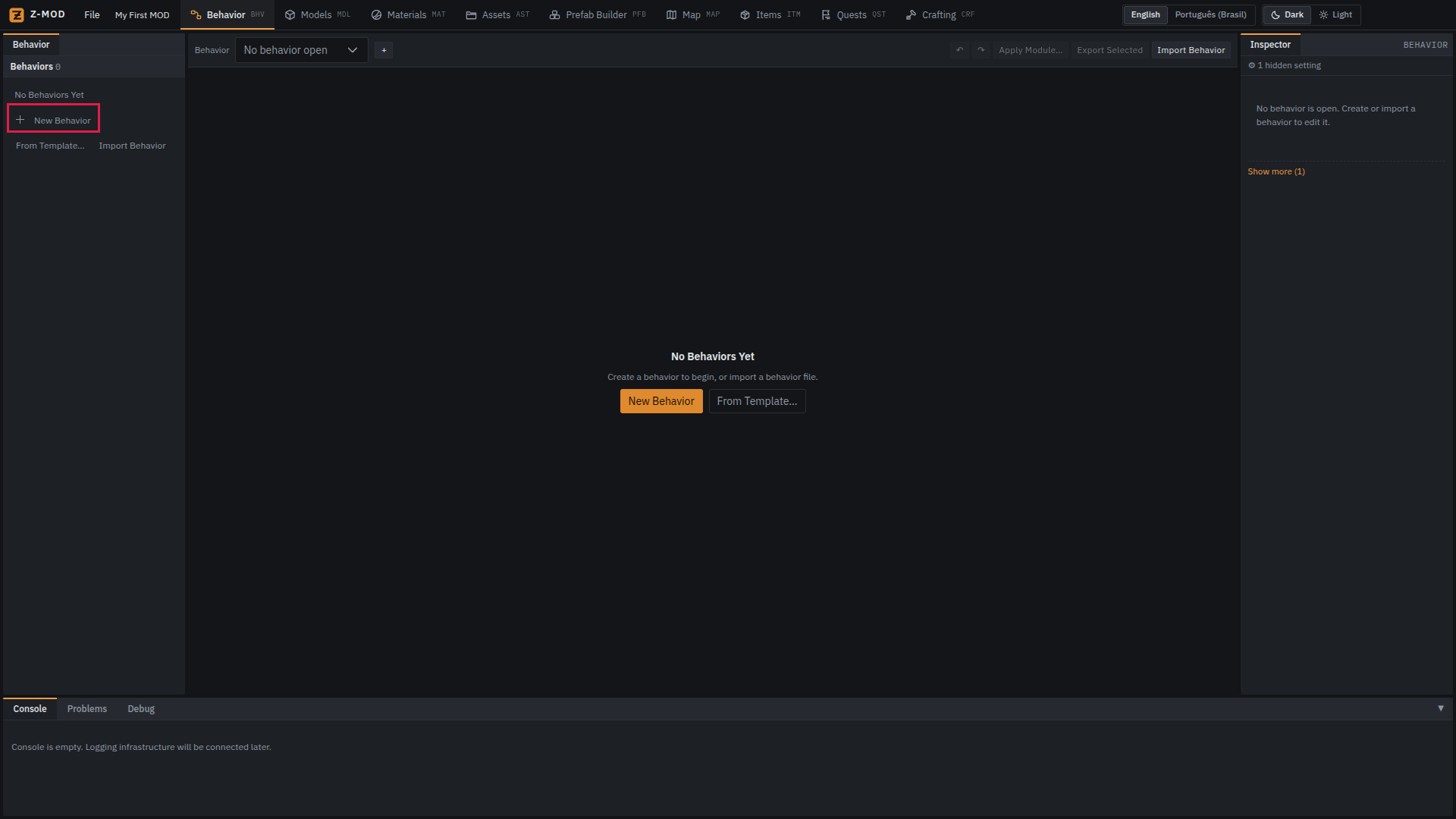
Create a behavior
Click New Behavior.
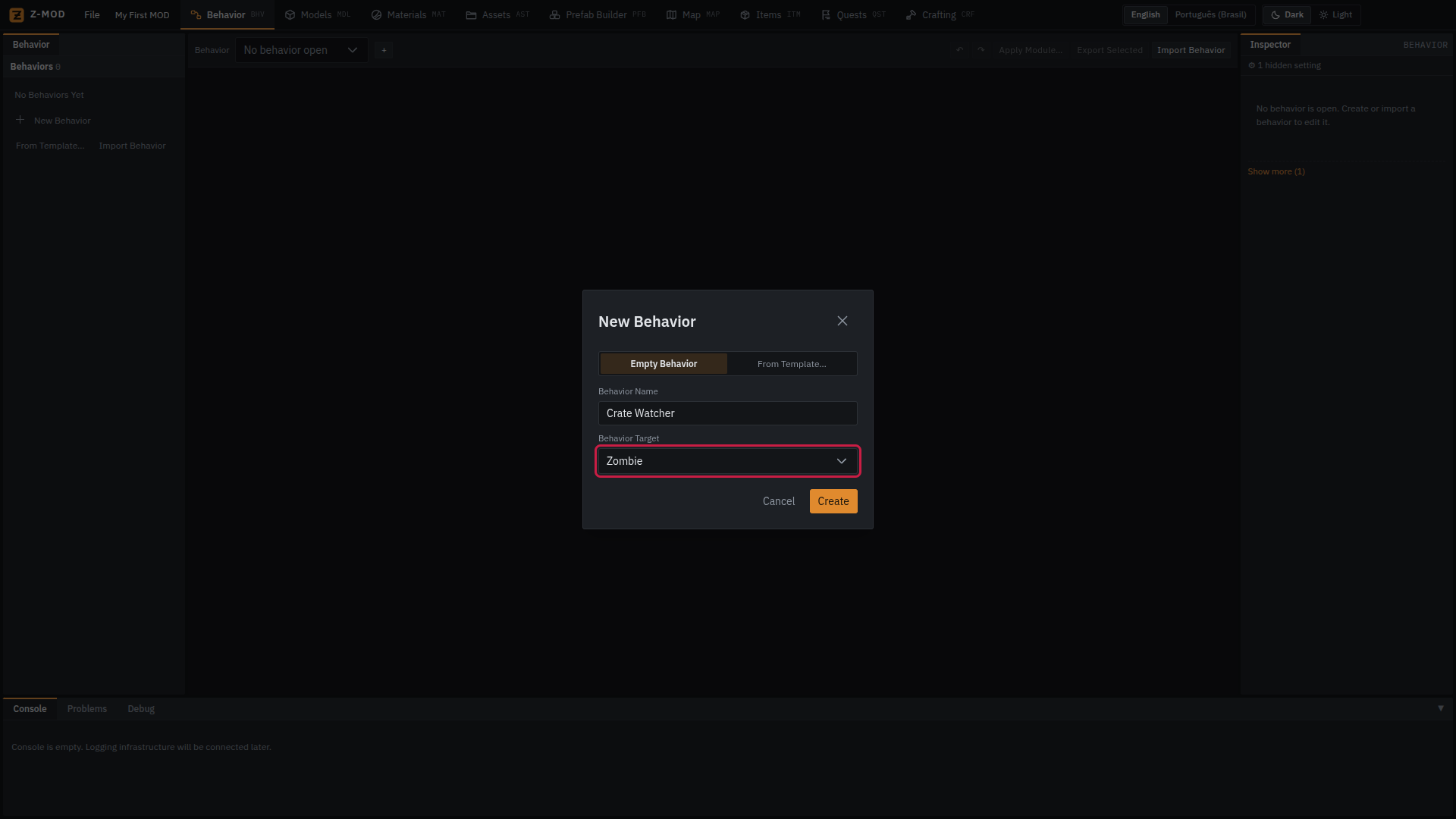
Choose how to start:
Empty Behavior: a behavior with no states. Type a Behavior Name and choose the Behavior Target: Zombie, NPC, Player, Vehicle or Animal.
From Template…: a ready-made behavior that you can change. Choose a category (Zombie, NPC or Animal), then a template. The preview on the right describes it, with its number of states, transitions and parameters.
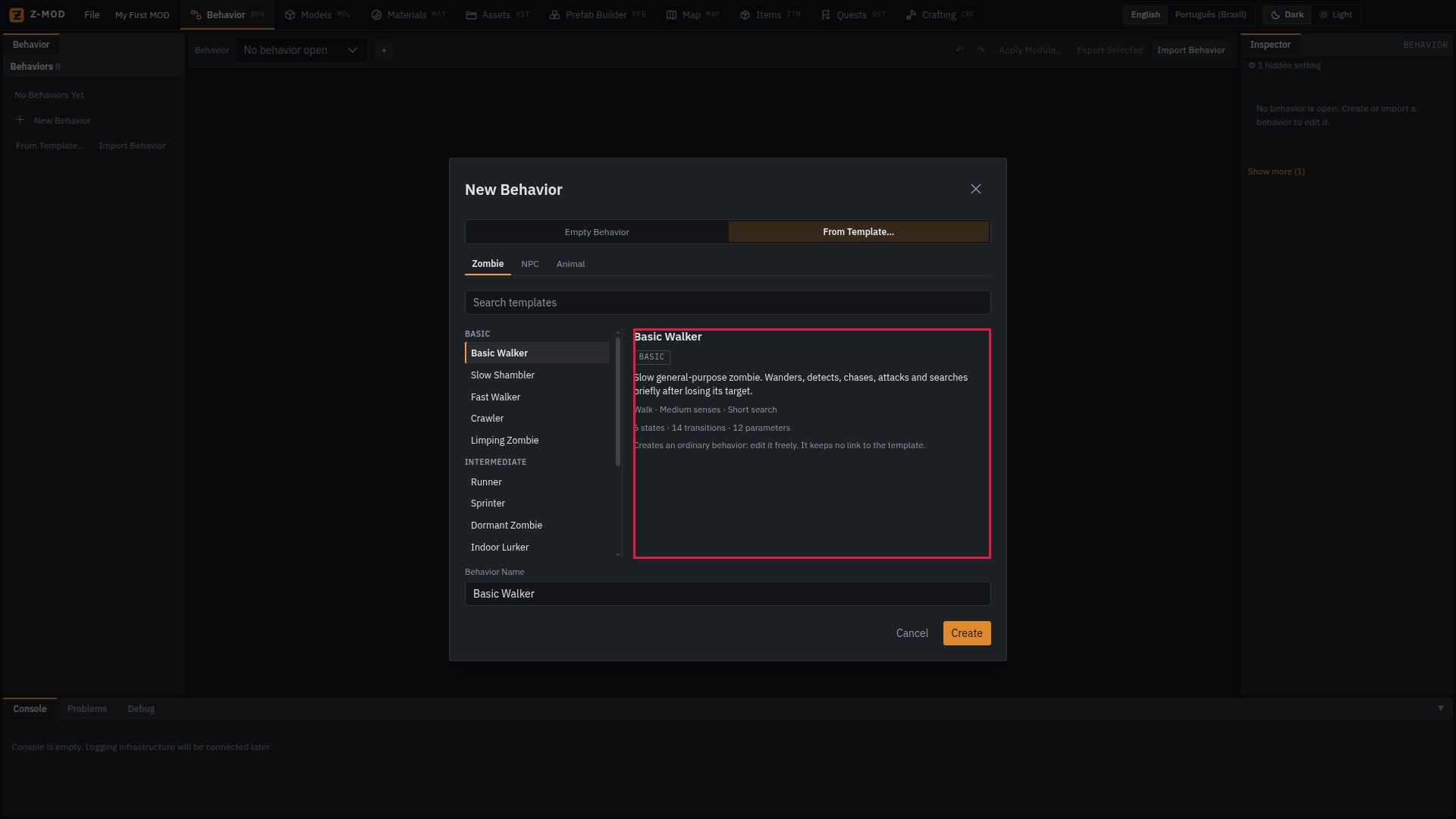
Click Create.
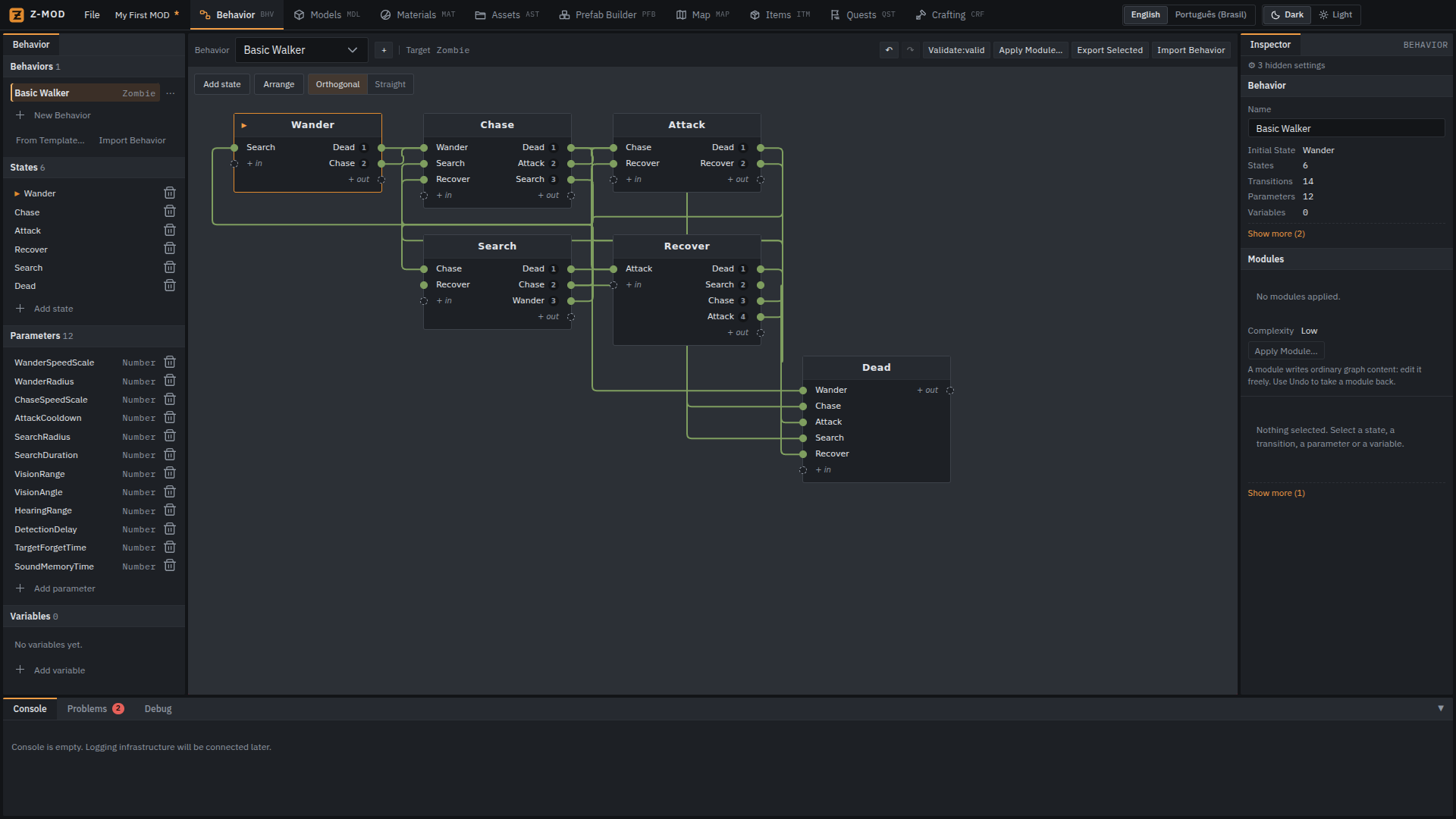
The new behavior opens. With the Basic Walker template, the graph already has six states: Wander, Chase, Attack, Search, Recover and Dead.
Start from a template
Templates such as Basic Walker, Slow Shambler, Runner or Civilian already work. Start from one and change it: it is much faster than starting from an empty behavior. A behavior made from a template keeps no link to the template, so you can change it freely.
Edit a behavior
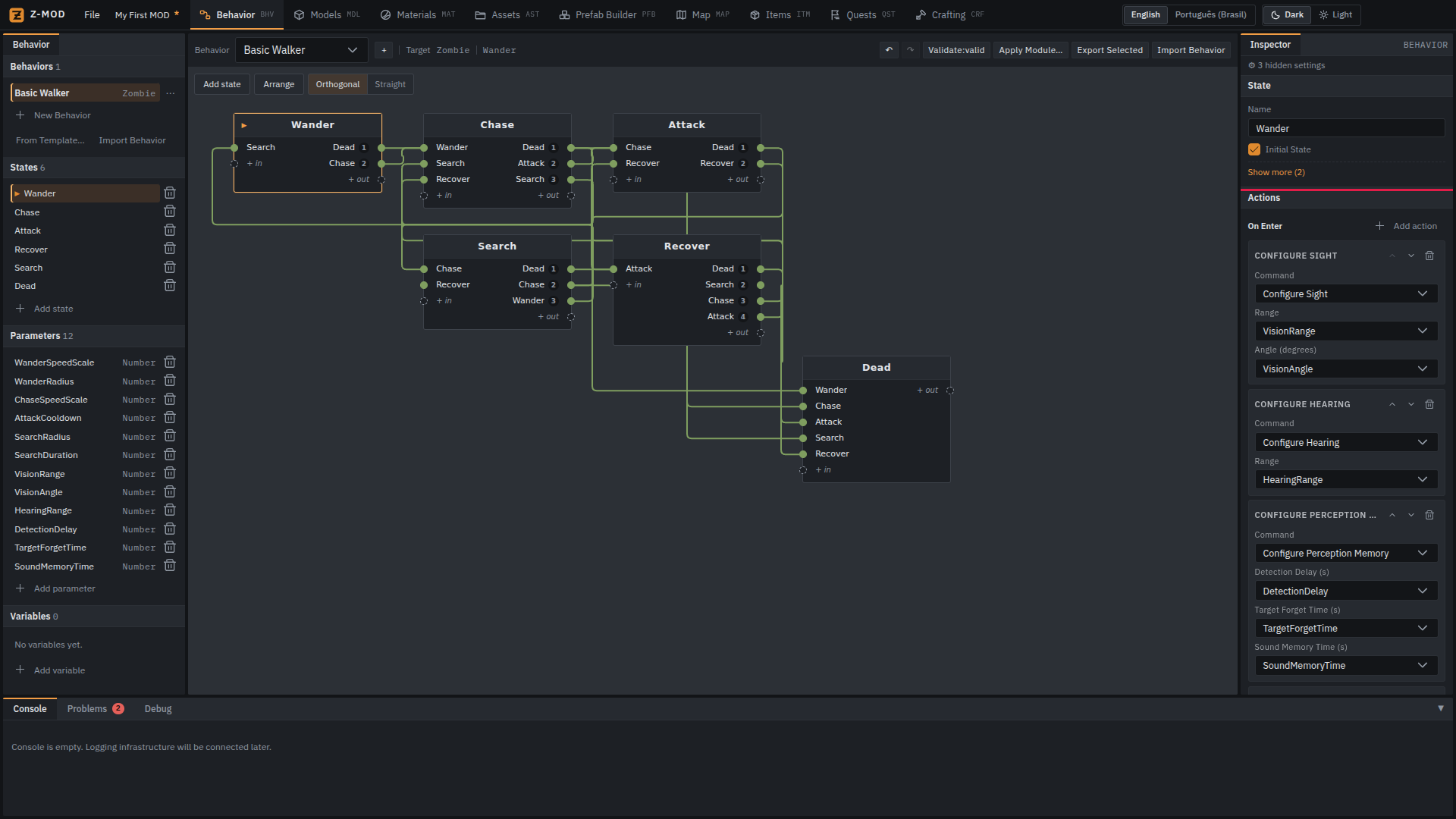
The screen shows:
- Left panel: the list of Behaviors, and for the open behavior its States, Parameters and Variables.
- Center: the graph. Each box is a state, and each line is a transition.
- Inspector: the settings of the selected state or transition.
States
- To add a state, click Add state (in the graph toolbar or in the left panel). The first state you add becomes the initial state.
- To rename a state, select it and change its Name in the Inspector.
- To make a state the initial state, select it and check Initial State.
- To add an action, click Add action in On Enter, On Update or On Exit, and choose a Command.
- To delete a state, click the trash button next to it in the States list.
Transitions
- To add a transition, drag from the + out port of a state to the + in port of another state.
- Select a transition to edit it in the Inspector: click Add condition, choose whether All conditions (AND) or Any condition (OR) must be true, and set its priority.
Other tools
- Arrange: organizes the boxes of the graph automatically.
- Orthogonal / Straight: the style of the lines.
- Parameters: values you can change for each entity that uses the behavior, for example a vision range.
- Variables: values the behavior remembers while it runs.
- The ⋯ button of a behavior in the list: Duplicate Behavior, Rename Behavior, Export Behavior and Delete Behavior.
- Export Selected and Import Behavior: save a behavior to a file, or load one from a file, to share it between projects.
Validate a behavior
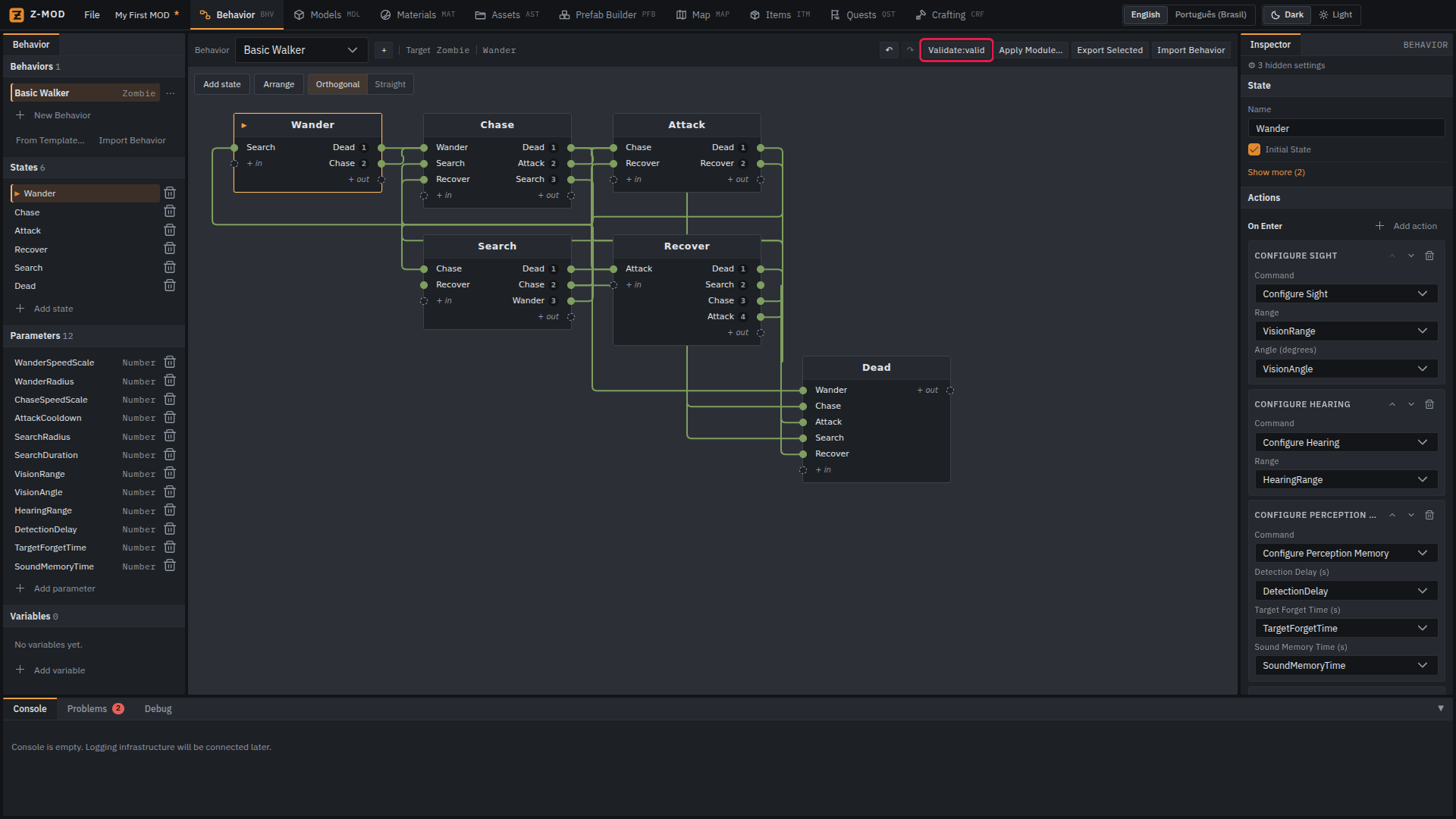
The Validate button in the top strip shows the result of the check: Validate:valid, or the number of errors and warnings. Click it to list the problems in the Problems tab.
Errors block the export
If an entity of your MOD uses a behavior with errors, the MOD cannot be exported.
Common messages:
| Message | What to do |
|---|---|
| The behavior has no states. | Click Add state. |
| No initial state is defined. | Select a state and check Initial State. |
| The state "…" cannot be reached from the initial state. | Add a transition that leads to it, or delete it. |
| A transition points to a state that no longer exists. | Delete the transition, or connect it to another state. |
| An action on "…" has no command selected. | Choose a Command for the action, or remove it. |
| The command … requires the argument "…". | Fill in the missing field of the action. |
| … is in On Update of "…": it repeats every tick. Move it to On Enter. | Move the action to On Enter. |