Appearance
The Z-MOD screen
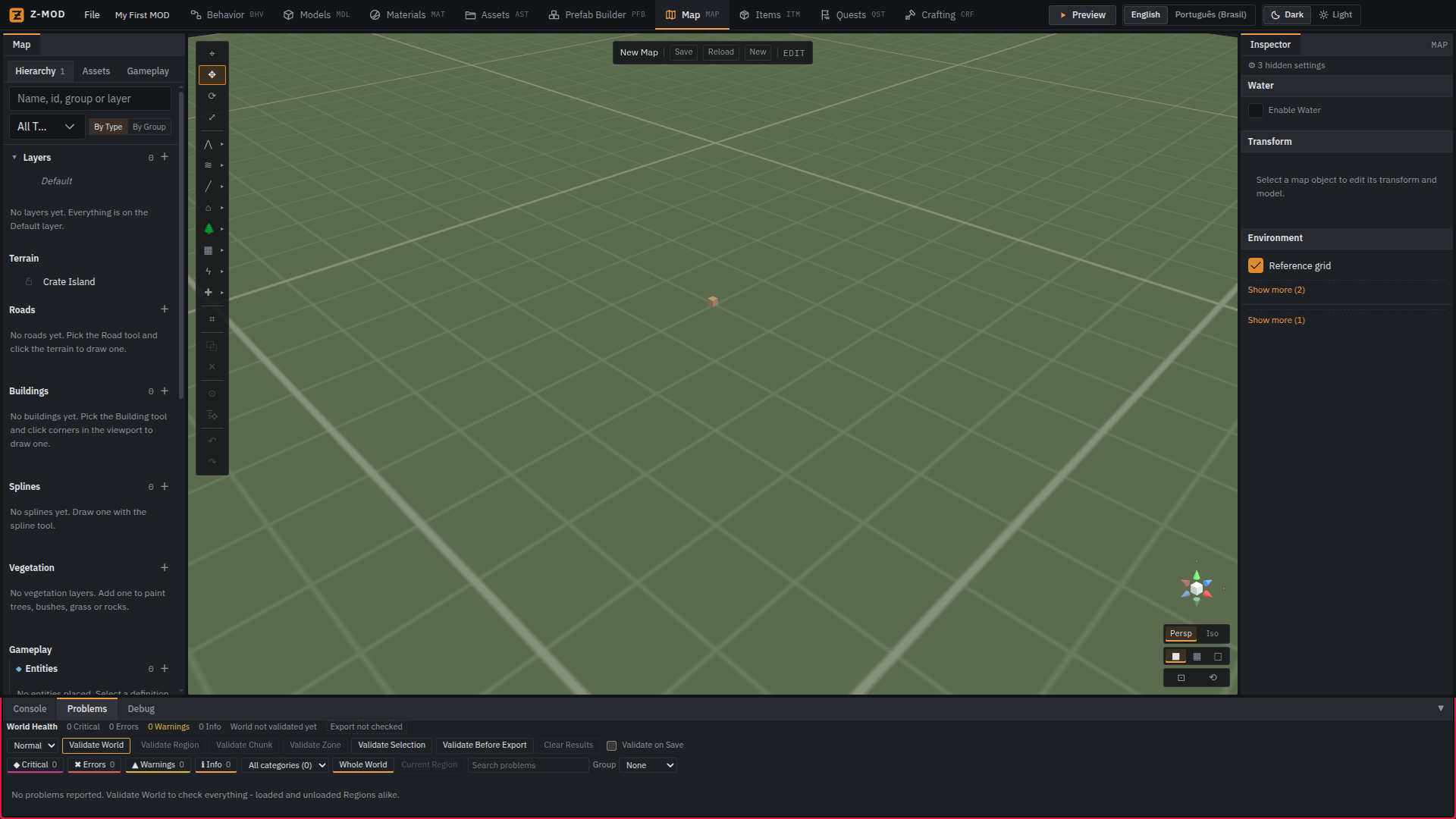
This page is a tour of the main screen. The screenshot below shows the Map workspace with a project open.
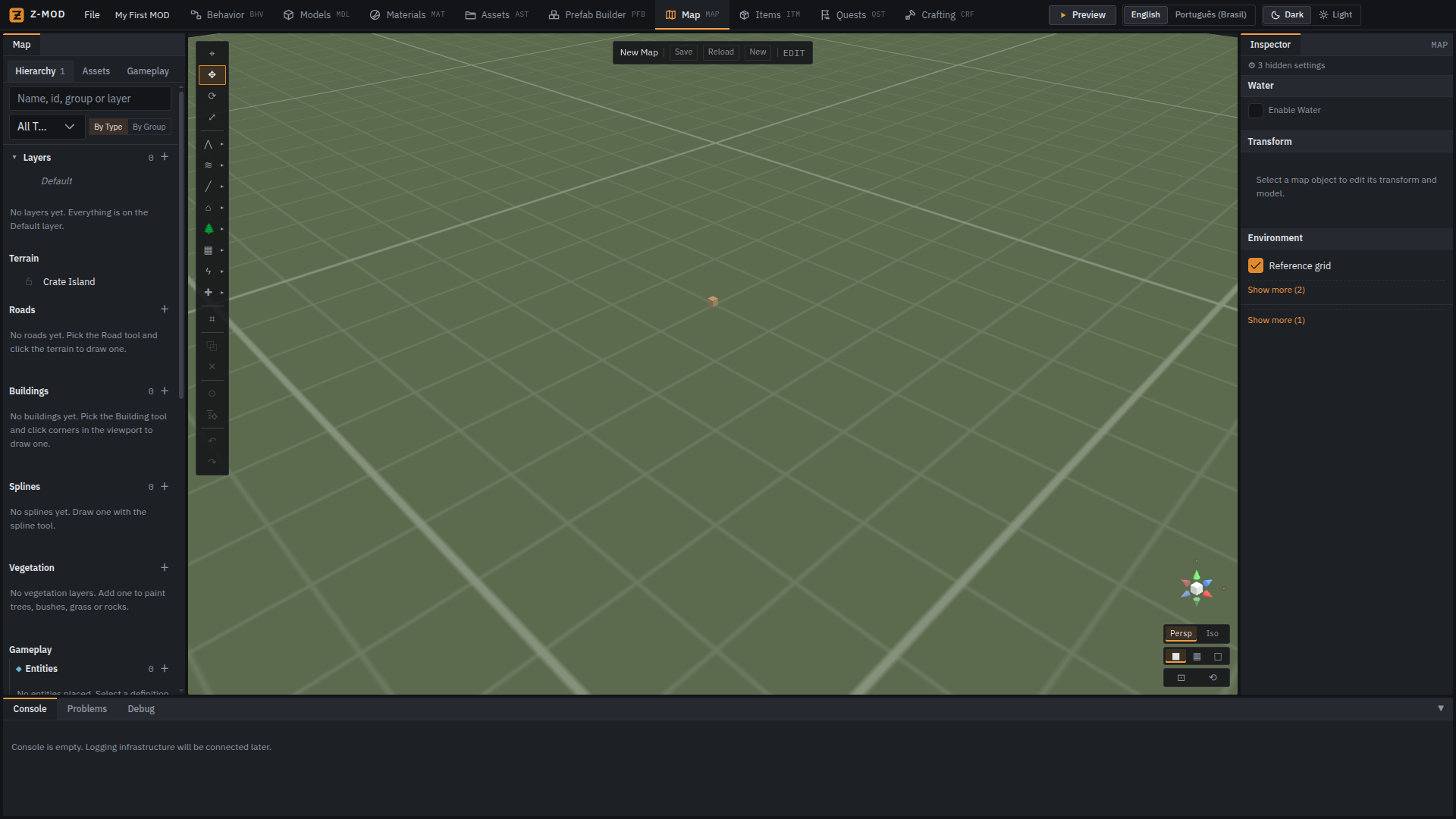
The screen has five areas:
- the top bar, at the top;
- the left panel;
- the workspace, in the center;
- the Inspector, on the right;
- the bottom panel.
1. Top bar
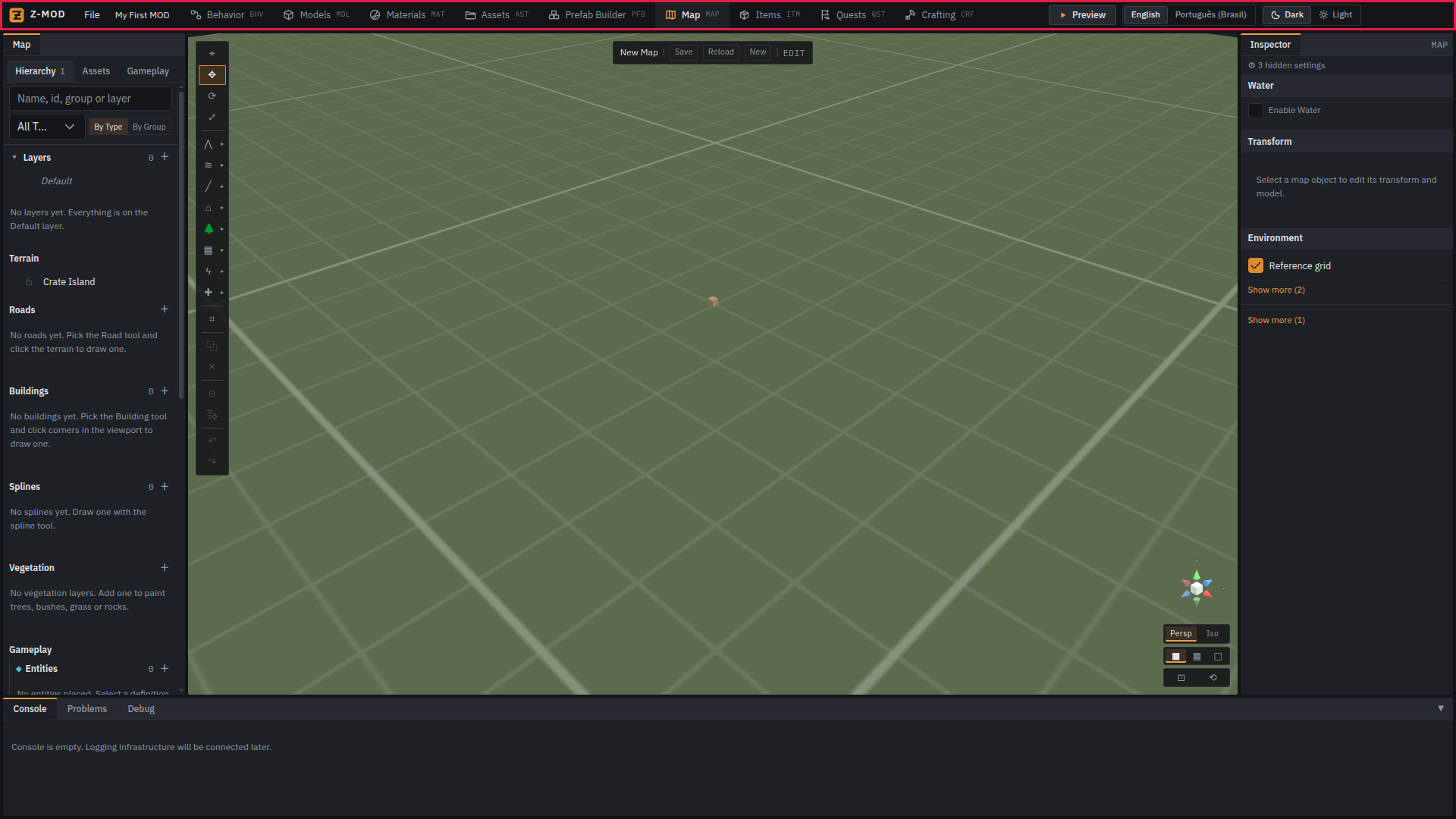
From left to right, the top bar has:
- Z-MOD: the name of the app.
- File: the menu for projects, Mod Settings, export and preferences. See Projects and Mod Settings.
- The name of the open project. A
*after the name means there are unsaved changes. When no project is open, it shows Browser Workspace. - The workspace buttons: Behavior, Models, Materials, Assets, Prefab Builder, Map, Items, Quests and Crafting.
- Preview: appears in the workspaces with a 3D view. It switches the view between edit mode (EDIT) and preview mode (PREVIEW).
The top bar has no language or appearance buttons in this version of Z-MOD: the language and the Dark / Light theme are set in File > Preferences… > General (see Preferences).
Older screenshots
The screenshots of the main screen and of the top bar on this page were taken with an earlier build of the editor, which still showed English / Português (Brasil) and Dark / Light buttons at the right end of the top bar. Those buttons are gone in the current editor (editor-top-bar.html). Everything else in these screenshots matches the current layout; new screenshots have not been taken yet.
Workspace buttons
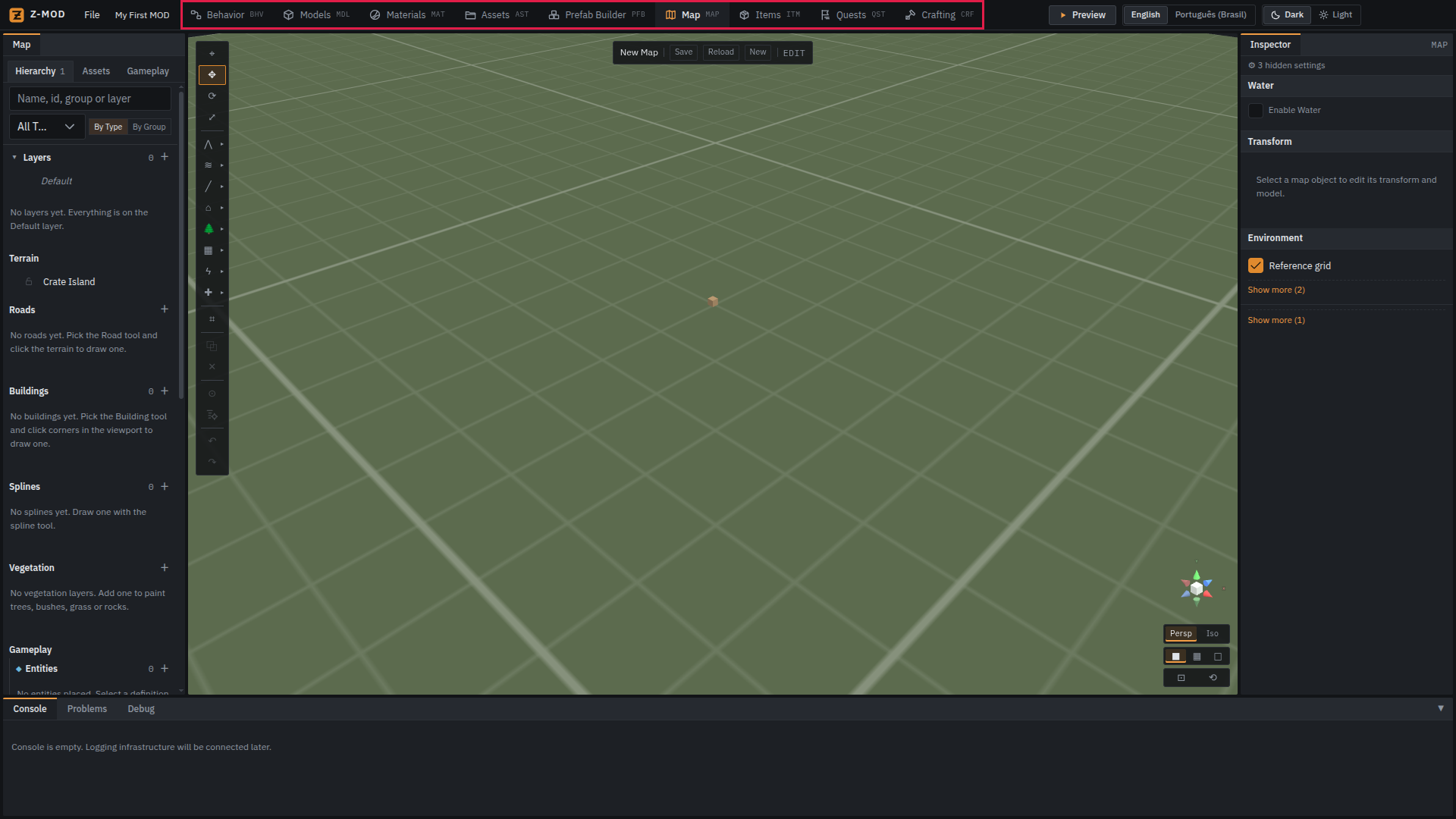
Click a button to open its workspace. Each button also shows a three-letter code (for example MAP). You can switch workspaces with the keyboard too:
| Keys | Workspace |
|---|---|
| Ctrl+1 | Behavior |
| Ctrl+2 | Models |
| Ctrl+3 | Materials |
| Ctrl+4 | Assets |
| Ctrl+5 | Prefab Builder |
| Ctrl+6 | Map |
| Ctrl+7 | Items |
| Ctrl+8 | Quests |
| Ctrl+9 | Crafting |
Dark and Light appearance
To change the colors of the app, open File > Preferences…, stay on General, and under Theme choose Dark or Light. The change is immediate. This manual uses the Dark theme.
2. Left panel
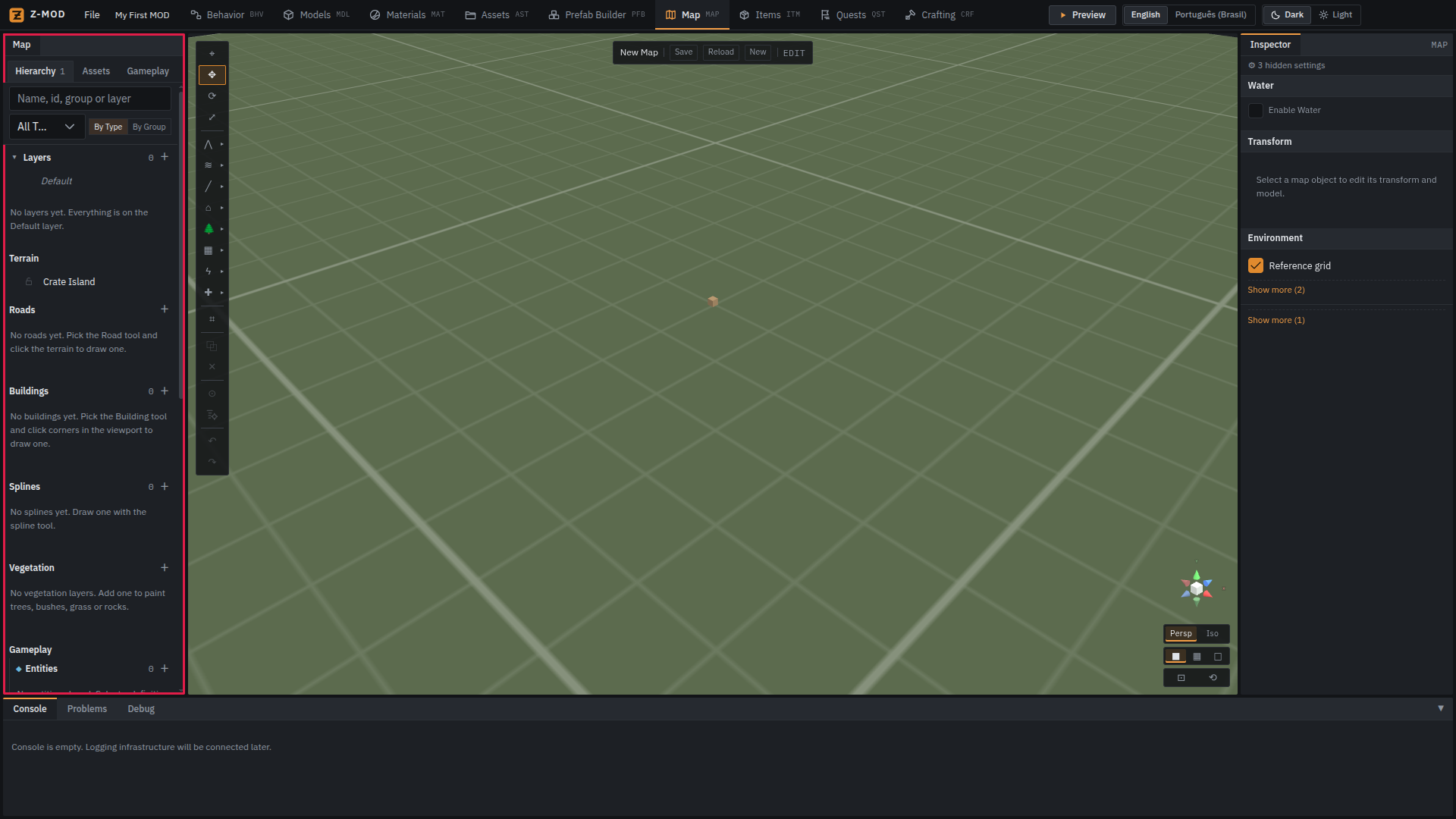
The left panel lists the content of the current workspace. For example:
- in Map, it has the tabs Hierarchy (everything in the map), Assets (models you can place) and Gameplay (entities, spawn pools, loot and vehicle profiles);
- in Models, it lists the models and textures of the project;
- in Behavior, it lists your behaviors and the states of the open behavior.
3. Workspace
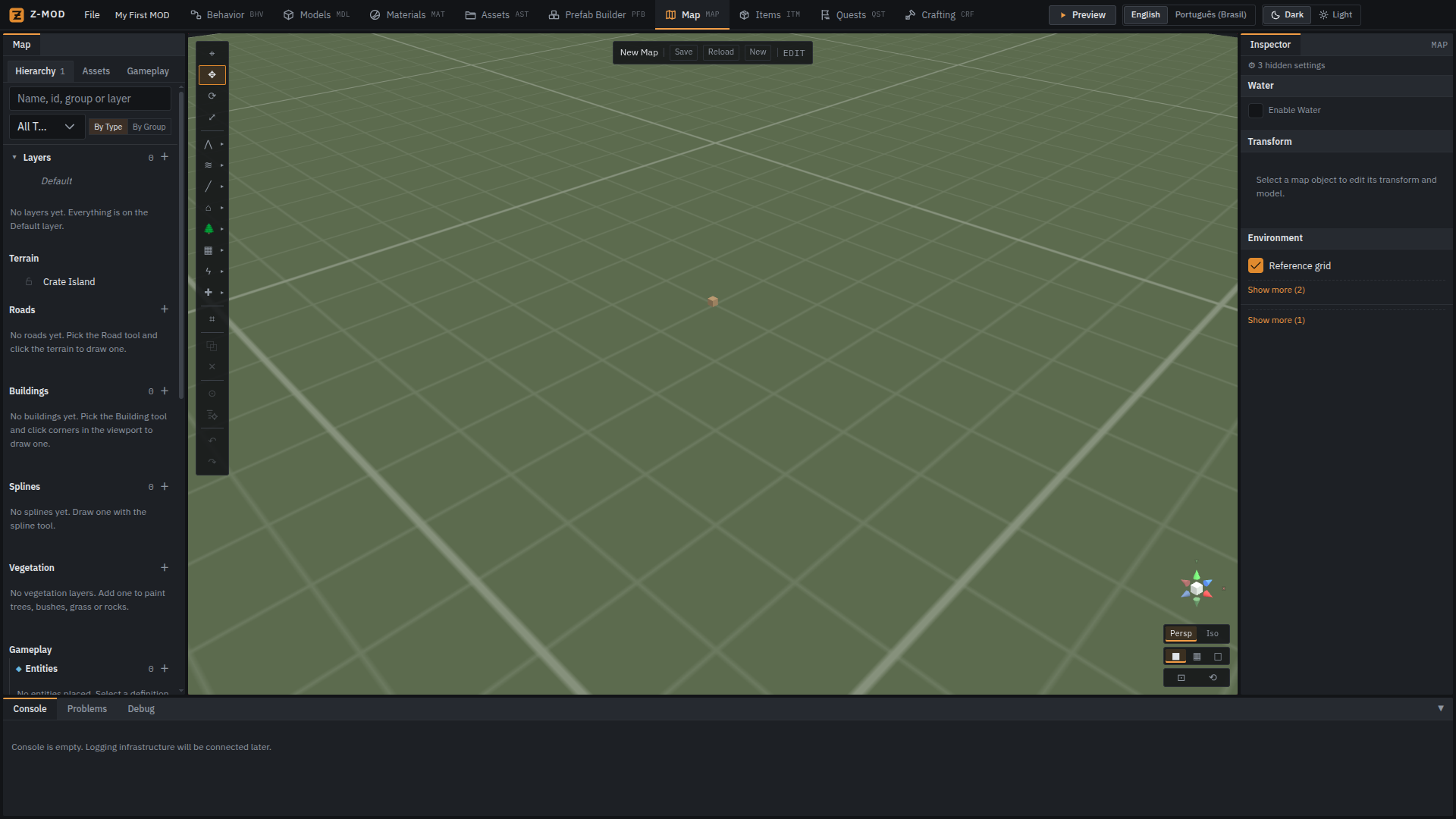
The workspace is the main area, where you edit. In Models, Map and Prefab Builder it is a 3D view:
- rotate the view: drag with the left mouse button;
- pan (move sideways): drag with the middle or right mouse button;
- zoom: turn the mouse wheel.
In the bottom-right corner of the 3D view there are buttons to change the camera:
- Persp and Iso: perspective view or isometric view (without perspective);
- the three square buttons: Shaded, Shaded + Wireframe and Wireframe render modes;
- Frame all and Reset view.
The small cube with colored arrows is the view orientation gizmo. Click an axis to look along it.
4. Inspector
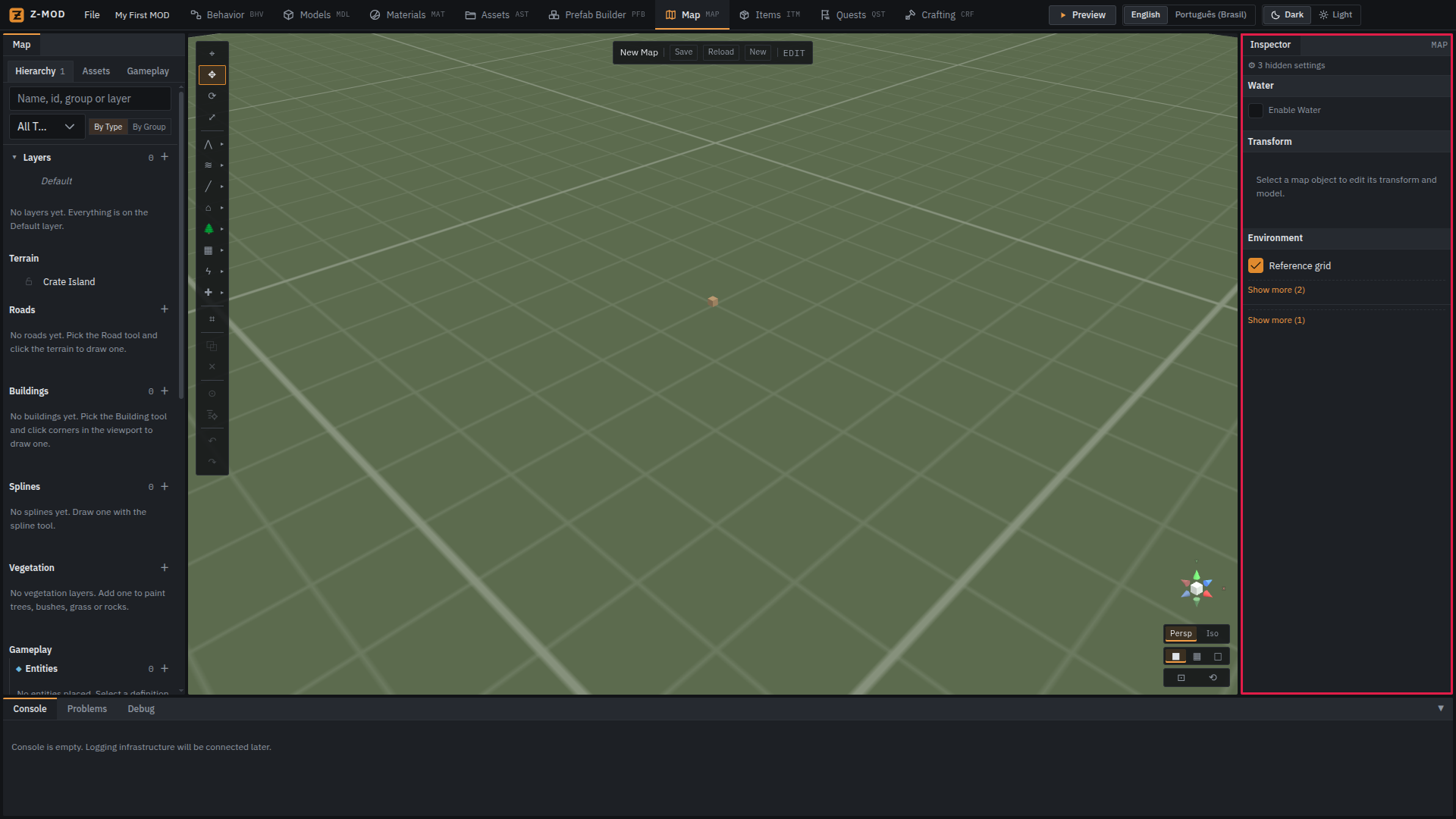
The Inspector shows the settings of what you selected: a map object, a model, a state of a behavior, an item, and so on. You change values directly in its fields.
Hidden settings and "Show more"
To keep things simple, the Inspector hides some advanced settings. The line at the top (for example 3 hidden settings) tells you how many are hidden. Click Show more in a section to see them.
You can choose how many settings the Inspector shows in File > Preferences… > General > Inspector Complexity:
- Normal: common authoring and procedural generation controls;
- Medium: additional tuning and customization controls;
- Advanced: all available technical and detailed settings.
5. Bottom panel
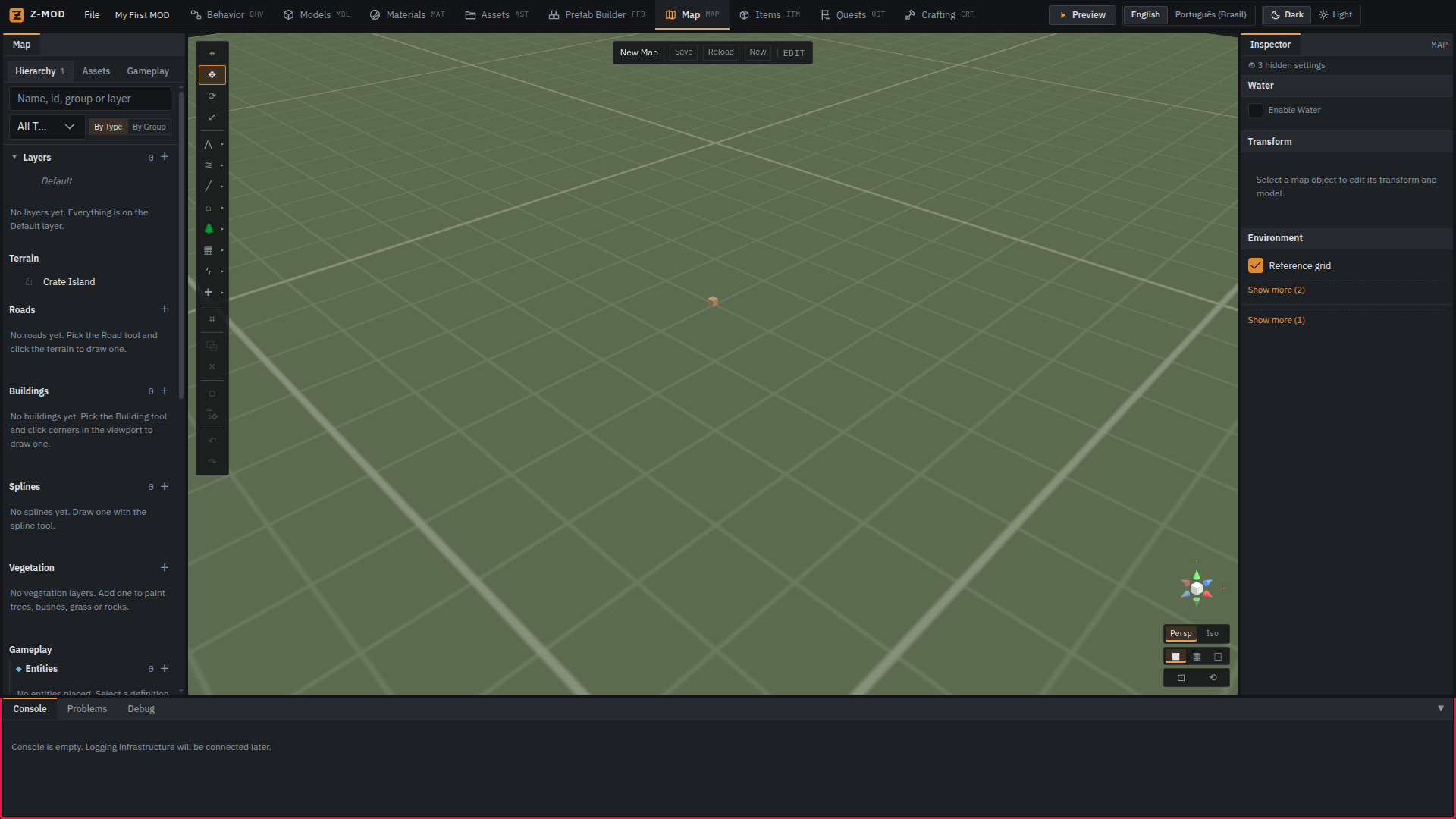
The bottom panel has three tabs:
- Console: messages from the editor.
- Problems: the problems found in your content. A red number on the tab shows how many problems there are. Click a problem to select what it is about. See Export and publish.
- Debug: information about the 3D view.
Click the arrow on the right (Collapse panel / Expand panel) to hide or show the bottom panel.
Resize the panels
Drag the borders between the panels to make them wider or narrower.
Preferences
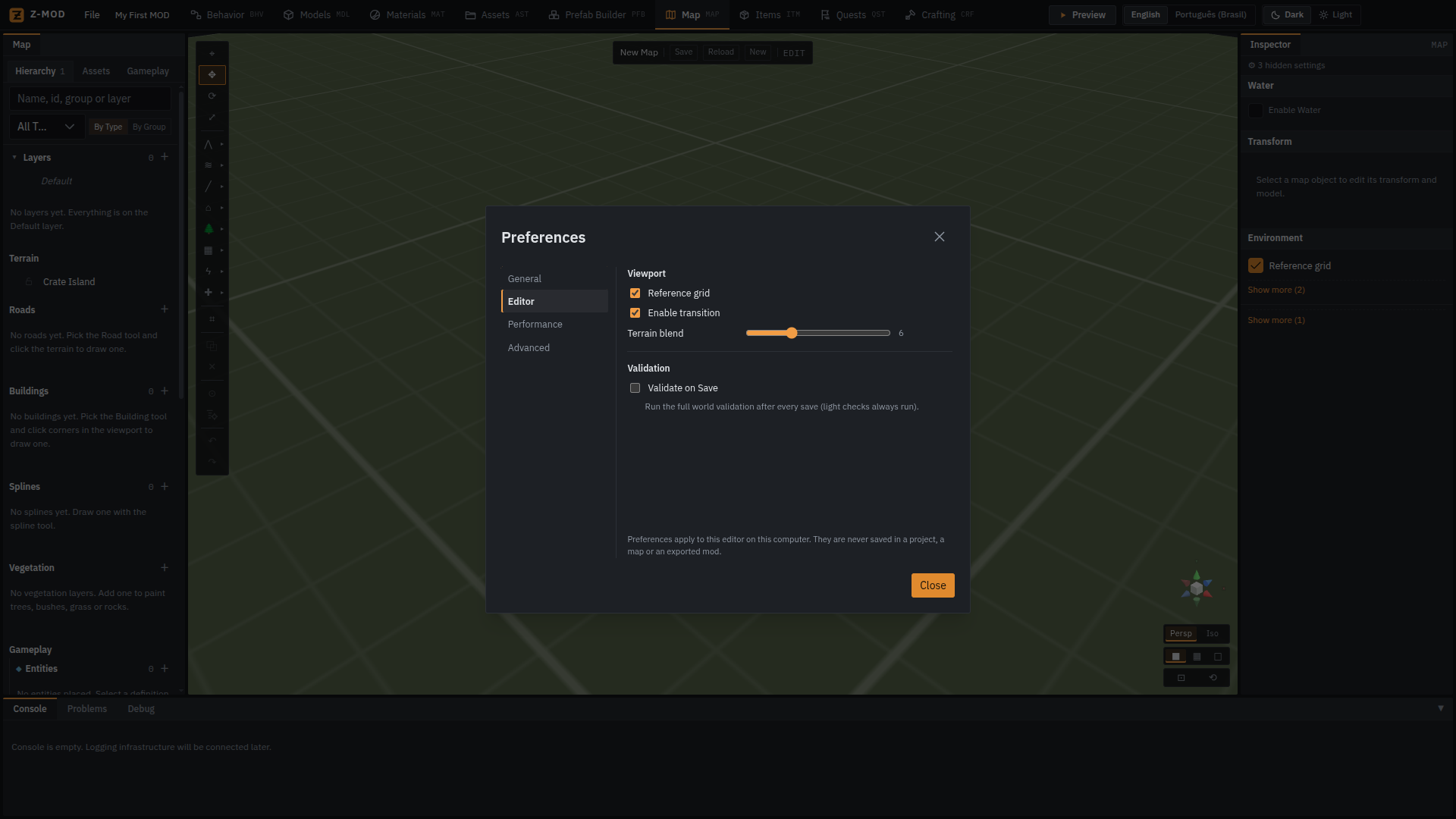
Open File > Preferences… to change the editor's preferences. They apply to Z-MOD on this computer only. They are never saved in a project, a map or an exported MOD.
| Category | What you can change |
|---|---|
| General | Language, Theme (Dark or Light), Inspector Complexity, and Show the Project Manager at startup. |
| Editor | The 3D view (Reference grid, Enable transition, Terrain blend) and Validate on Save. |
| Performance | Viewport rendering (quality and level of detail of the 3D view) and World streaming. |
| Advanced | Debug display options for the 3D view. |