Appearance
Prefab Builder
A prefab is a group of models assembled into one reusable object, such as a house, a wall or a checkpoint. You build it once in the Prefab Builder, then place it as many times as you want in your maps.
Before you start: make models available
The Prefab Builder only offers models that are marked for it:
- Open the Models workspace and select a model.
- In the Availability section of the Inspector, check Available in Prefab Builder.
Otherwise the Parts browser says "No construction resources available."
Create a prefab
Open Prefab Builder.
Next to Prefabs, click + (New Prefab).
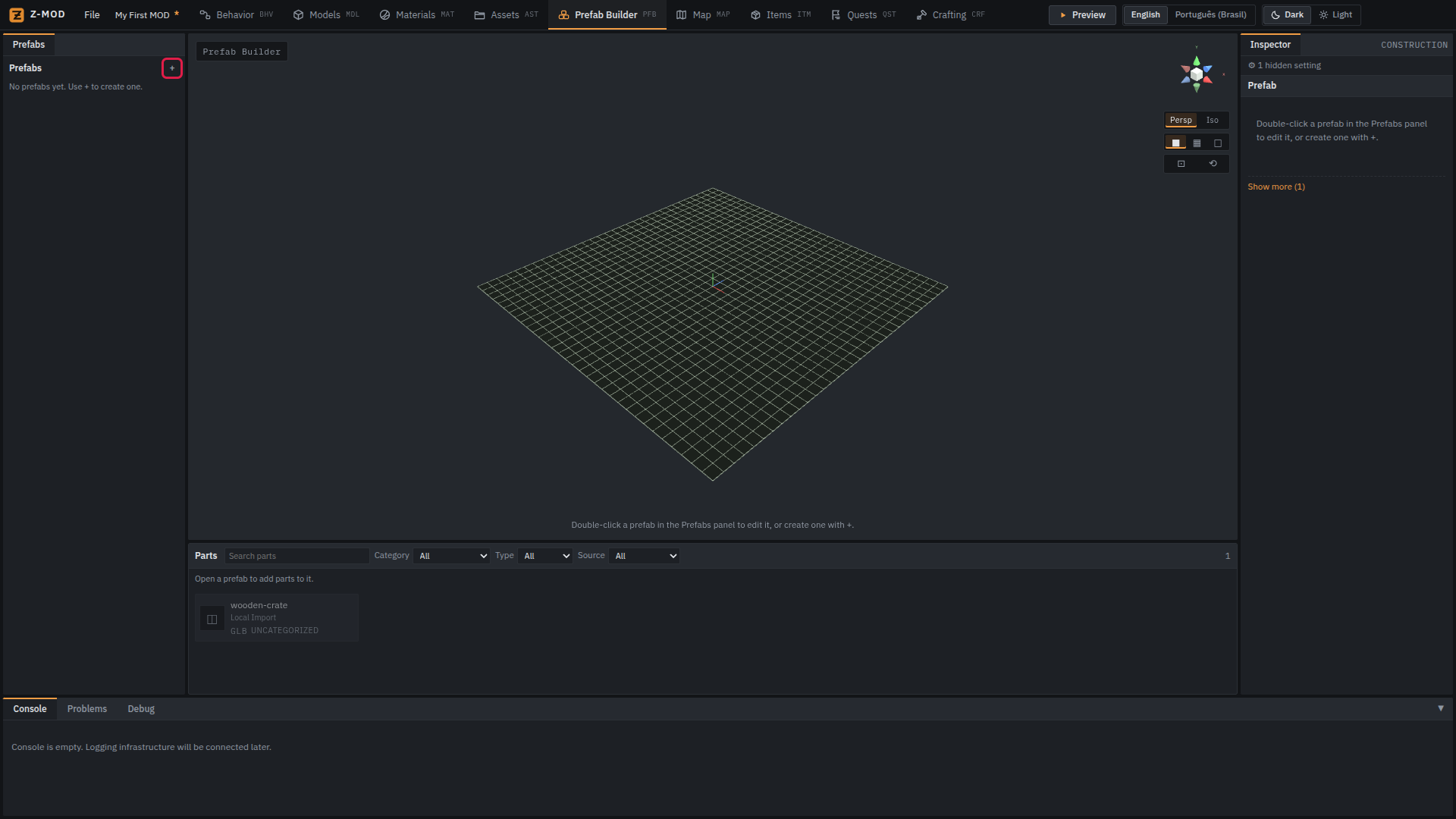
Double-click the new prefab in the list to open it.
In the Parts browser, below the 3D view, double-click a model to add it to the prefab. Each double-click adds one more part.
Select a part and arrange it:
- with the tools Select, Move, Rotate and Scale on the left of the 3D view, or
- by typing its Local position, Rotation (degrees) and Scale in the Inspector.
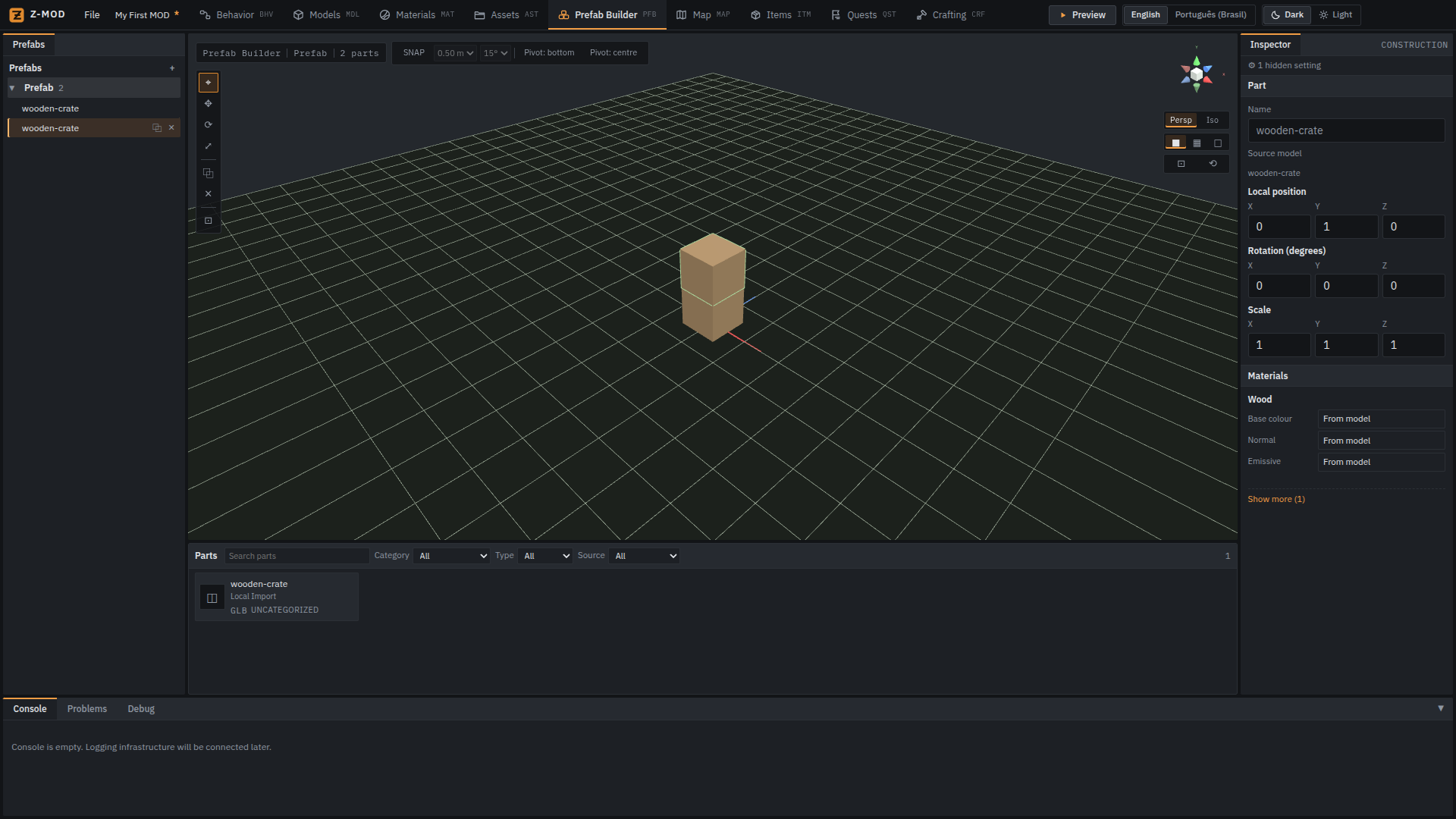
In the example above, the second crate has Local position Y = 1, so it sits on top of the first crate.
Useful tools
- SNAP: moves and rotates in fixed steps (for example 0.50 m and 15°).
- Pivot: bottom / Pivot: centre: the point the part rotates and scales around.
- Frame prefab: centers the view on the whole prefab.
- Duplicate part and Remove part: next to each part in the list.
- Materials (Inspector): replace the Base colour, Normal or Emissive texture of a part. Select the material slot, then double-click a texture in the Parts browser. From model means the original texture is used.
Place a prefab in a map
In the Map workspace, the Assets tab lists Prefabs first. Drag a prefab into the 3D view, or click its + button, like a model.
A prefab in use cannot be deleted
If a prefab is placed in a map, Z-MOD refuses to delete it: "'…' is placed … time(s) in: … Remove those placements first."