Appearance
Assets catalog
The Assets workspace shows the online Asset Catalog: a library of published models, textures, animations and audio that you can add to your project.
You need an internet connection
The Asset Catalog is online. Without a connection, Z-MOD shows Catalog unavailable, with a Retry button. The rest of the editor keeps working.
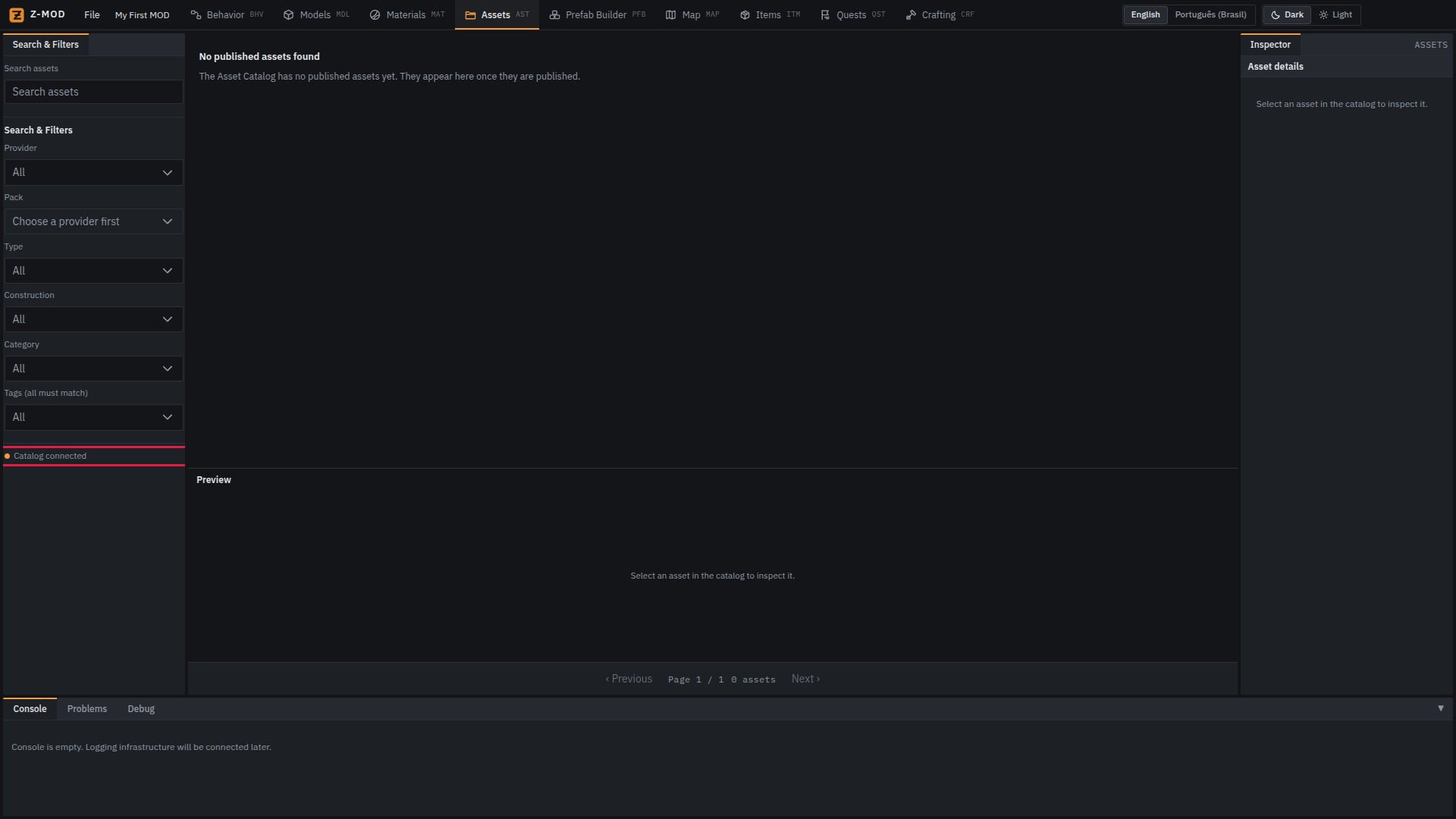
The parts of the screen
- Search & Filters (left panel): the search box Search assets and the filters Provider, Pack, Type, Construction, Category and Tags (all must match). The bottom of the panel shows the connection status: Connecting…, Catalog connected or Catalog unavailable.
- Results (center): the assets found, with Previous and Next to change pages.
- Preview (center, bottom): a 3D preview of the selected asset. Drag to orbit, scroll to zoom.
- Asset details (Inspector): the version, files, dependencies and other details of the selected asset.
Add an asset to your project
- Search for the asset and click it.
- In the Inspector, click Add to Project.
- Wait while Z-MOD resolves the dependencies, downloads and verifies the files, and imports them.
When it is done, you see "Added to the project: … asset(s)". The asset appears in the Models workspace, marked as imported from the Asset Catalog.
To confirm
When this manual was written, the catalog had no published assets ("No published assets found"), so the steps above come from the app's code and could not be shown in a screenshot.
Only models in glb/gltf format and textures in png/jpeg/webp can be added. For other files, Z-MOD shows "The editor cannot import this kind of asset yet."
Updates
For an asset added from the catalog, the Models workspace shows Check for updates. When a new version exists, click Update to v… to install it. Restore asset downloads the asset again if its file is missing.