Appearance
Installation
Requirements
- A computer with Windows, 64-bit. The installer is built for Windows x64.
- A graphics card that supports hardware-accelerated 3D. The Models, Map and Prefab Builder workspaces show a 3D view. Without 3D support, Z-MOD shows the message "This environment does not support hardware accelerated 3D rendering."
- An internet connection only for the Assets catalog and for publishing. Everything else works offline.
To confirm
The minimum Windows version, memory and disk space are not defined in the app. Check them with the Z-MOD team.
Install Z-MOD
- Download the installer. Its name looks like
SurvivorEditor-<version>-win-x64-setup.exe. - Double-click the installer.
- Follow the steps of the setup wizard. You can choose the folder where Z-MOD is installed.
- When the setup finishes, open Survivor Editor from the Start menu.
To confirm
Where to download the installer (for example, on the DARK FEVER website) is not defined in the app. Check the official download link with the Z-MOD team.
Your data is safe when you uninstall
The uninstaller does not delete your settings. Your projects are normal folders on your computer, so they are never deleted with the app.
First start
The first time you open Z-MOD, the Project Manager appears in the middle of the screen. From there you can create a new project or open an existing one. The tutorial starts exactly here.
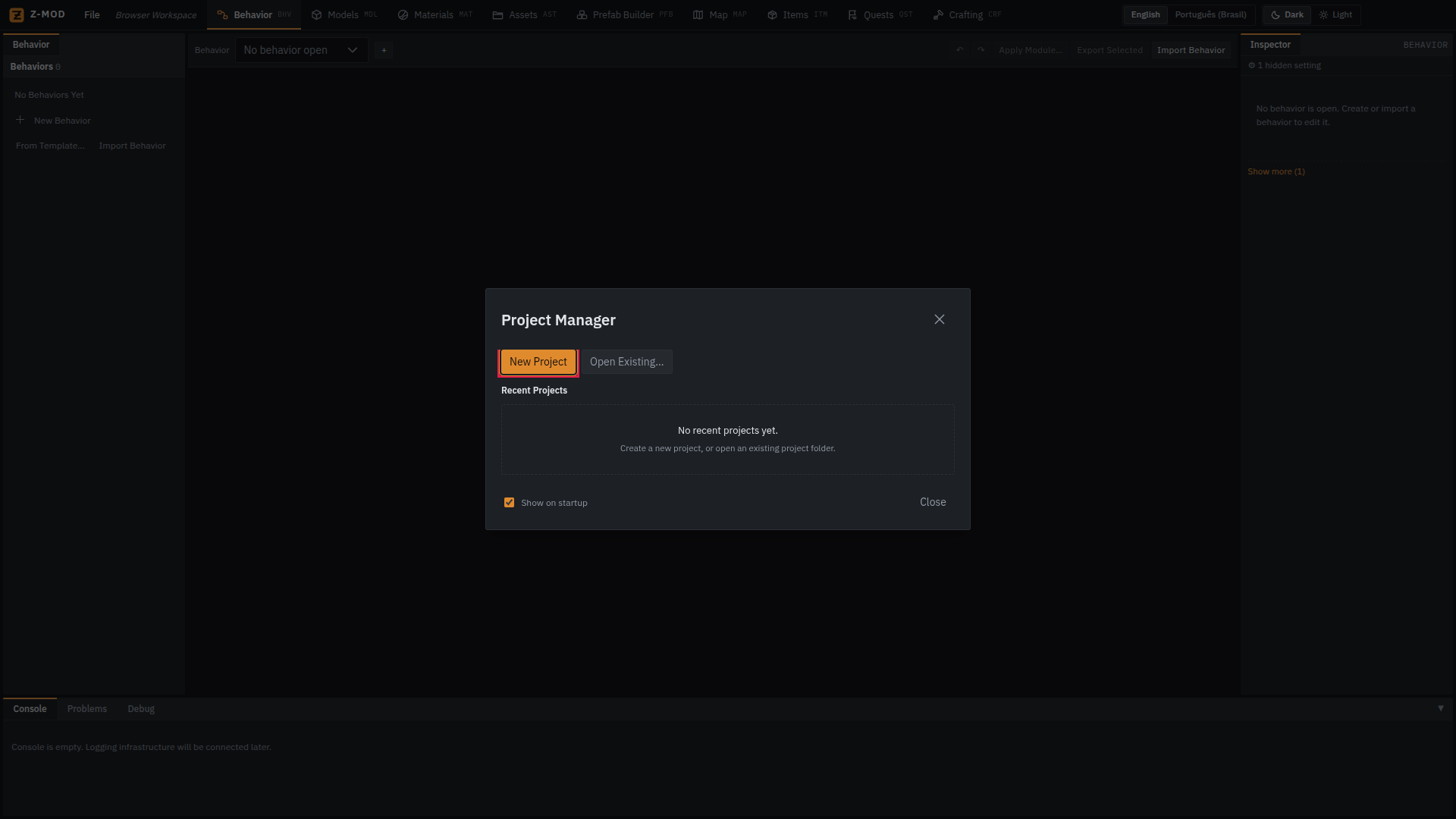
If you don't want to see the Project Manager every time, clear Show on startup. You can always open it again from File > Project Manager….
Language
Z-MOD is available in English and Português (Brasil). On the first start, it uses the language of your computer. If your computer uses another language, Z-MOD opens in English.
This manual shows the English interface
All the screenshots and button names in this manual are in English. To follow the manual more easily, switch Z-MOD to English:
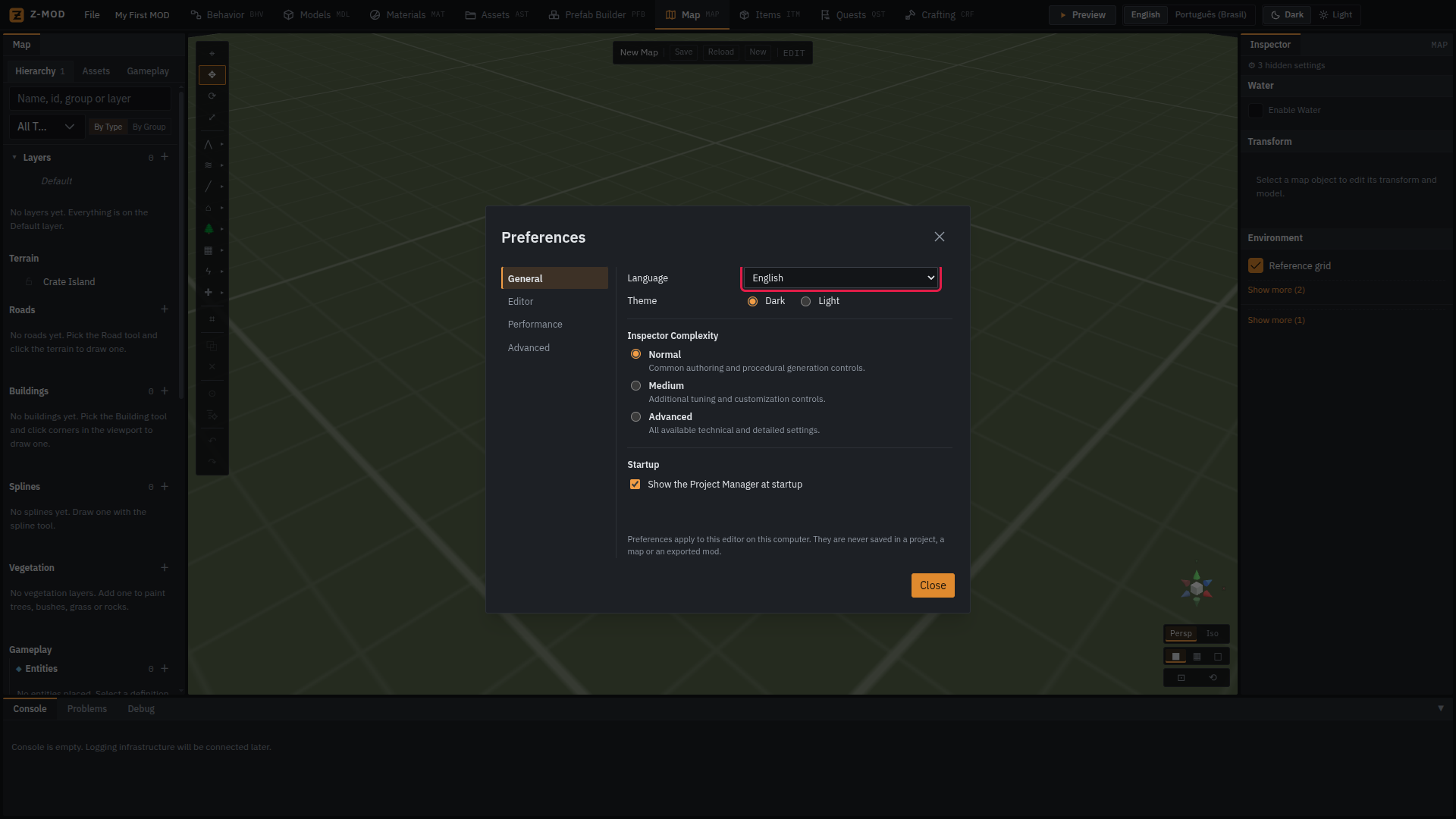
- open File > Preferences…, and in General, choose English in Language. Each language is listed by its own name (English, Português (Brasil)), so you can find yours even if you cannot read the current one.
The change is immediate: you don't need to restart the app. Z-MOD remembers your choice.
Older builds of Z-MOD also had English / Português (Brasil) buttons in the top-right corner of the window. The current editor no longer has them: File > Preferences… > General > Language is the only place to change the language.