Appearance
Projects and Mod Settings
What is a project?
A project is a folder on your computer that holds everything of one MOD: its maps, models, textures, behaviors, items, quests and its Mod Settings. One project = one MOD.
When you create a project, Z-MOD creates a folder with the name of the project. Inside it there is a file called project.survivor, which marks the folder as a Z-MOD project, and a file called mod.json, with the Mod Settings.
Don't edit the project files by hand
Always change your project with Z-MOD. If a file is changed by hand, Z-MOD may not be able to open the project.
The Project Manager
The Project Manager opens when Z-MOD starts. You can also open it with File > Project Manager….
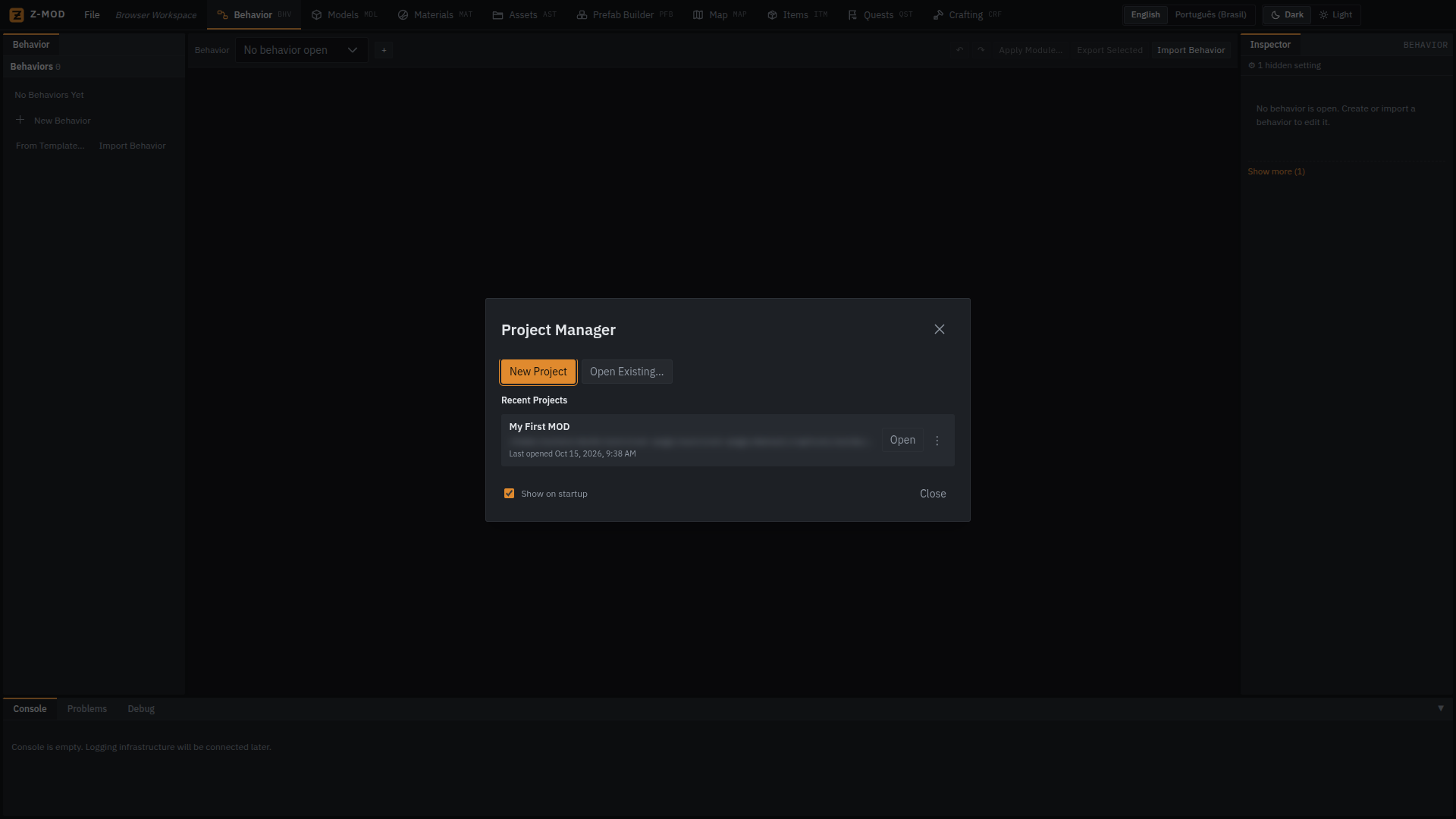
- New Project: creates a new project. See Step 1 of the tutorial.
- Open Existing…: opens a project folder that is already on your computer.
- Recent Projects: the projects you opened recently, with the date you last opened them. Click Open to open one.
- Show on startup: clear this option if you don't want the Project Manager to open when Z-MOD starts.
Click the ⋮ button of a recent project to see more actions:
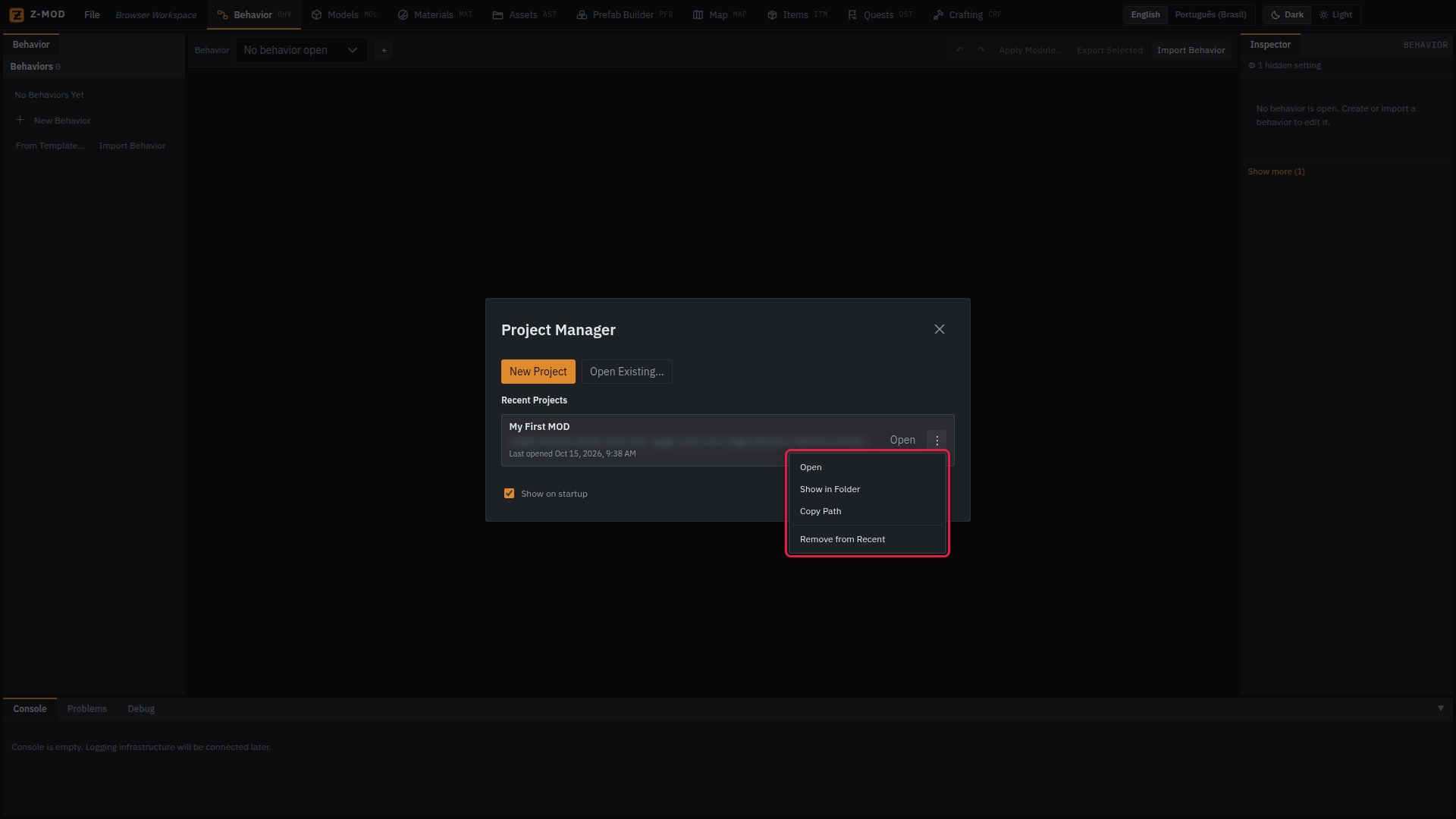
- Open: opens the project.
- Show in Folder: opens the project folder in Windows Explorer.
- Copy Path: copies the location of the project folder.
- Remove from Recent: removes the project from this list. No files are deleted.
If a project was moved, renamed or deleted, the list marks it as Missing. Click Locate… to tell Z-MOD where the folder is now, or remove it from the list.
The File menu
| Command | What it does |
|---|---|
| New Project | Creates a new project. |
| Open Project | Opens a project folder. |
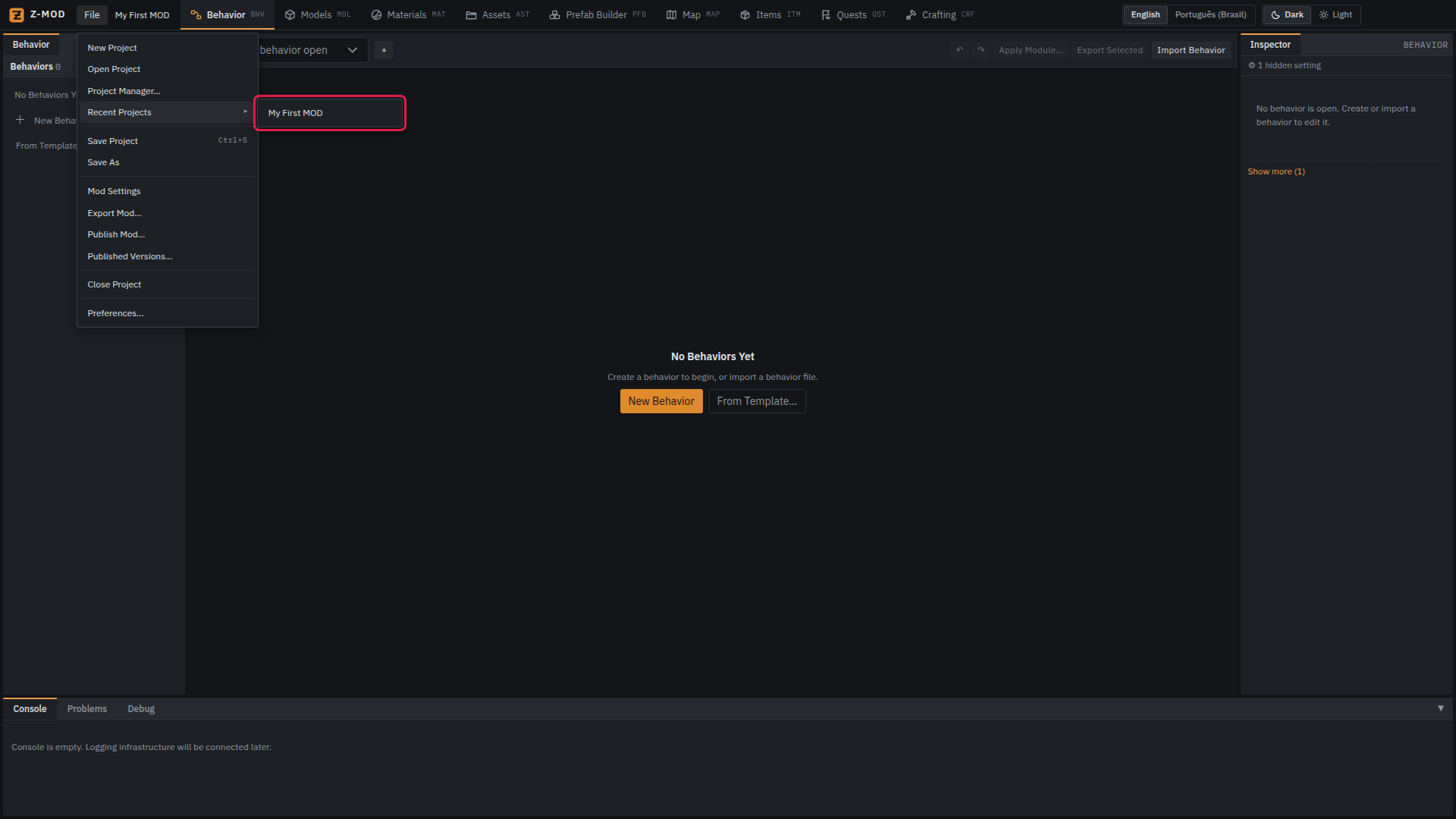
| Project Manager… | Opens the Project Manager. |
| Recent Projects | Lists the projects you opened recently. Point to it to see the list. |
| Save Project (Ctrl+S) | Saves all the changes of the project. |
| Save As | Saves a copy of the project in a new folder, with a new name. |
| Mod Settings | Opens the identity of the MOD. See below. |
| Export Mod… | Creates the MOD file. See Export and publish. |
| Publish Mod… | Sends the MOD to the Mod Platform. See Export and publish. |
| Published Versions… | Shows the versions of the MOD already on the Mod Platform. |
| Close Project | Closes the project. |
| Preferences… | Opens the editor preferences. See The Z-MOD screen. |
Unsaved changes
When there are unsaved changes, a * appears after the project name. If you close the project, or open another one, Z-MOD asks Save Changes?:
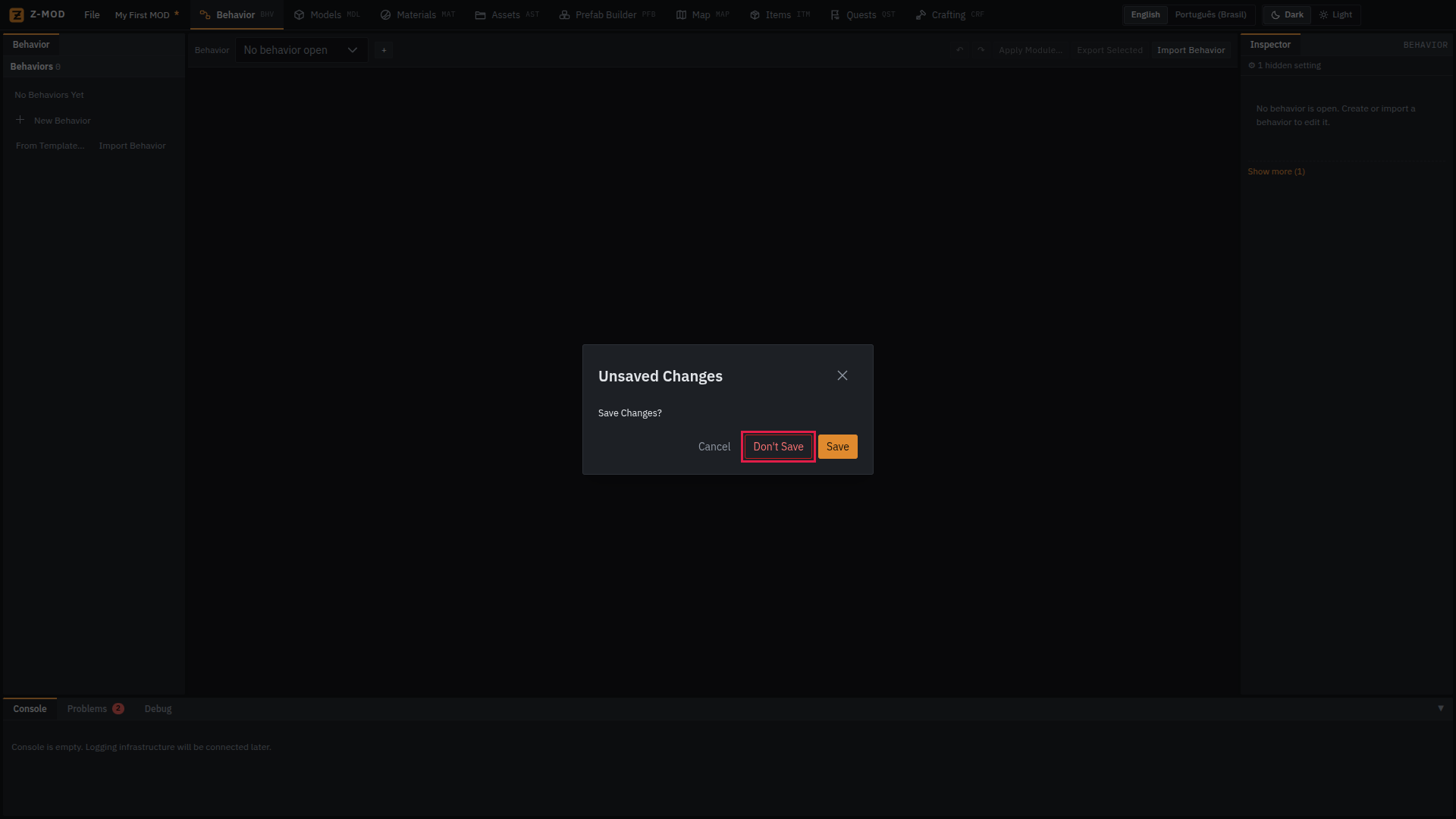
- Save: saves the changes, then continues.
- Don't Save: throws away the changes, then continues.
- Cancel: goes back to the project, without doing anything.
Working without a project: the Browser Workspace
When no project is open, the top bar shows Browser Workspace. You can still create content, but it is not a project: as the tooltip says, "This content is kept in this browser only and is not a portable project." You cannot export a MOD from it.
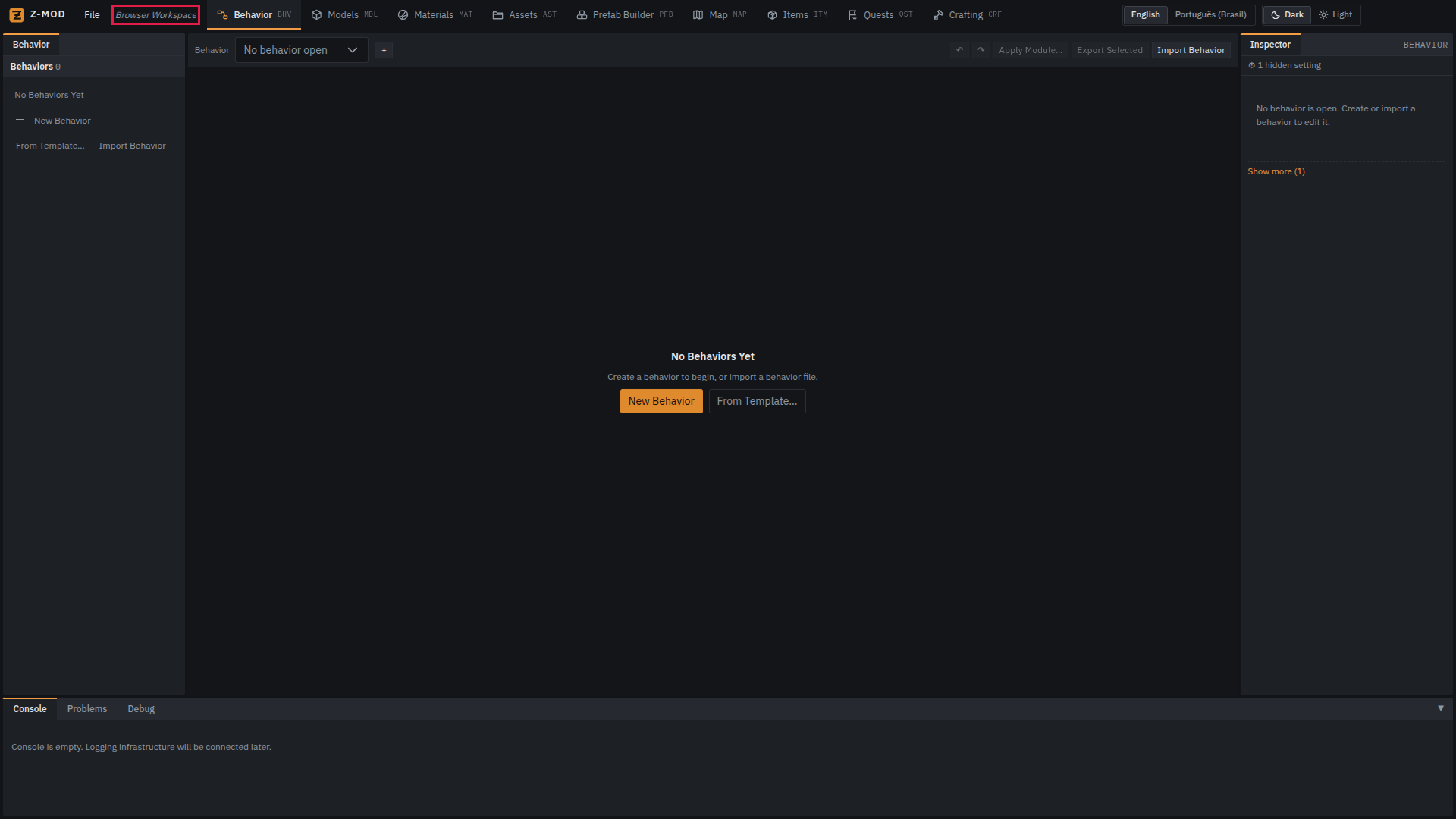
To turn this content into a real project, click File > Create Project From Current Workspace. Everything in the Browser Workspace is copied into the new project folder. The Browser Workspace itself is kept.
Mod Settings
Open File > Mod Settings to edit the identity of the MOD. The changes are saved with the project.
| Field | What it means |
|---|---|
| Mod ID | The unique technical name of the MOD. The game and other MODs use it to find your MOD. Click Change ID to edit it. Use up to 96 letters, digits, ., _ or -. |
| Mod Name | The name players see. |
| Version | The version of the MOD, for example 1.0.0. Increase it each time you share a new version. |
| Author | Your name. To credit several people, write them on one line. |
| Description | A short description of the MOD. |
| Dependencies | Other MODs that your MOD needs, by Mod ID. |
Dependencies
If your MOD needs another MOD to work, add it as a dependency:
- Click Add Dependency.
- Type the Mod ID of the other MOD (for example
other.mod.id). - Check Optional if your MOD also works without it.
The game checks the dependencies when it loads MODs. The other MODs don't need to be open in Z-MOD. To remove a dependency, click its remove button.
Problems in the Mod Settings
The Mod Settings dialog lists its problems at the bottom. The same problems appear in the Problems tab of the bottom panel.
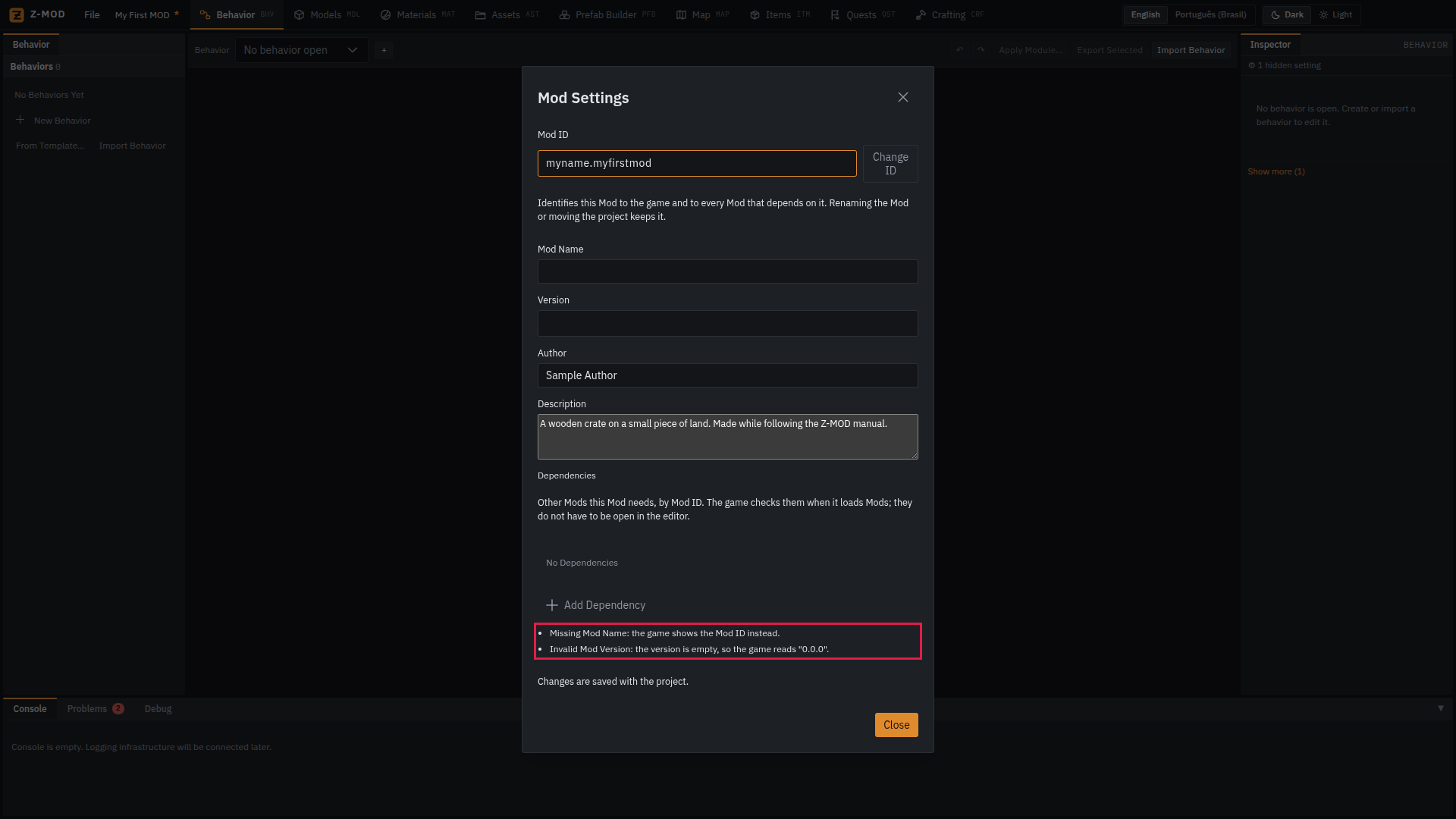
| Message | What to do |
|---|---|
| Missing Mod ID: the game refuses a Mod without an ID. | Click Change ID and type a Mod ID. |
| Invalid Mod ID "…": use at most 96 letters, digits, ".", "_" or "-". | Remove spaces and other characters from the Mod ID. |
| The game reads the Mod ID "…" as "…". | The game reads the Mod ID in lowercase. Type it in lowercase to avoid confusion. |
| Missing Mod Name: the game shows the Mod ID instead. | Type a Mod Name. |
| Invalid Mod Version: the version is empty, so the game reads "0.0.0". | Type a Version, for example 1.0.0. |
| Duplicate Dependency: "…" is declared more than once. | Remove the repeated dependency. |
| Mod Cannot Depend On Itself: … | Remove the dependency that has your own Mod ID. |